<?xml version="1.0" encoding="utf-8"?><feed xmlns="http://www.w3.org/2005/Atom" ><generator uri="https://jekyllrb.com/" version="3.10.0">Jekyll</generator><link href="https://www.cyberpunk.tools/feed.xml" rel="self" type="application/atom+xml" /><link href="https://www.cyberpunk.tools/" rel="alternate" type="text/html" /><updated>2025-12-01T11:51:45+00:00</updated><id>https://www.cyberpunk.tools/feed.xml</id><title type="html">The Cyberpunk.Tools Blog</title><subtitle>A blog about the lessons, tools, and tricks I’ve picked up over nearly 20 years in IT.
</subtitle><author><name>Jurijs Ivolga</name><email>jurijs.ivolga@gmail.com</email></author><entry><title type="html">Add AI Voice Agent to FreeSWITCH in 30 Minutes</title><link href="https://www.cyberpunk.tools/jekyll/update/2025/11/18/add-ai-voice-agent-to-freeswitch.html" rel="alternate" type="text/html" title="Add AI Voice Agent to FreeSWITCH in 30 Minutes" /><published>2025-11-18T08:00:00+00:00</published><updated>2025-11-18T08:00:00+00:00</updated><id>https://www.cyberpunk.tools/jekyll/update/2025/11/18/add-ai-voice-agent-to-freeswitch</id><content type="html" xml:base="https://www.cyberpunk.tools/jekyll/update/2025/11/18/add-ai-voice-agent-to-freeswitch.html"><![CDATA[<h3 id="overview">Overview</h3>

<p>Today I’ll explain how to connect your PBX to a real AI agent from ElevenLabs or any other AI agents that can communicate via WebSockets. We’ll focus on ElevenLabs, and our WebSocket server is designed to use ElevenLabs, but it can be easily adjusted for any other AI provider.</p>

<p><strong>Architecture:</strong> End users registered to FreeSWITCH make outbound calls. FreeSWITCH connects to a local WebSocket server, which then connects to the ElevenLabs AI agent.</p>

<p>At the end of this setup, any user registered in FreeSWITCH will be able to dial 9999 and the call will be connected to an ElevenLabs AI agent.</p>

<p>We’ll use <code class="language-plaintext highlighter-rouge">mod_audio_stream</code> as the FreeSWITCH module that communicates with ElevenLabs. Note that the version I’m using (1.0.3) is not open source and is limited to 10 licenses.</p>

<p>If you have another PBX like Asterisk, you can configure a SIP trunk between Asterisk and this setup, then route the necessary calls to FreeSWITCH and from there to ElevenLabs.</p>

<p>If needed, you can also get a real phone number, set up routing, and connect it to your FreeSWITCH instance, which then routes to ElevenLabs.</p>

<p>All of this is beyond this short manual. Here I’ll just explain how to route a call from FreeSWITCH to an ElevenLabs AI agent using WebSockets.</p>

<h2 id="requirements">Requirements</h2>

<p>You’ll need an account in ElevenLabs, where you’ll create or use an existing agent. For my test, I used the default public agent. Your agent should be configured for PCM 16000 Hz. You’ll need to grab your Agent ID - we’ll need it later.</p>

<h2 id="installing-freeswitch-with-mod_audio_stream">Installing FreeSWITCH with mod_audio_stream</h2>

<p>I prefer a dockerized environment, and in my lab I used Docker - we’ll use it extensively here.</p>

<p>To install FreeSWITCH, we’ll use my project:</p>

<p><a href="https://github.com/os11k/freeswitch-docker-compose">https://github.com/os11k/freeswitch-docker-compose</a></p>

<p>On your server, run the following (this will put all code in <code class="language-plaintext highlighter-rouge">/usr/src</code>):</p>

<div class="language-bash highlighter-rouge"><div class="highlight"><pre class="highlight"><code>apt-get update <span class="o">&amp;&amp;</span> apt-get upgrade <span class="nt">-y</span> <span class="o">&amp;&amp;</span> apt-get <span class="nb">install </span>docker-compose <span class="nt">-y</span>
<span class="nb">cd</span> /usr/src
git clone https://github.com/os11k/freeswitch-docker-compose.git
</code></pre></div></div>

<p>We’ll need to update <code class="language-plaintext highlighter-rouge">Dockerfile</code> to install <code class="language-plaintext highlighter-rouge">mod_audio_stream</code>. Add <code class="language-plaintext highlighter-rouge">wget</code> to the package list and append the installation commands:</p>

<div class="language-diff highlighter-rouge"><div class="highlight"><pre class="highlight"><code><span class="gd">-DEBIAN_FRONTEND=noninteractive apt-get -y install git build-essential pkg-config uuid-dev zlib1g-dev libjpeg-dev libsqlite3-dev libcurl4-openssl-dev libpcre3-dev libspeexdsp-dev libldns-dev libedit-dev libtiff5-dev yasm libopus-dev libsndfile1-dev unzip libavformat-dev libswscale-dev libswresample-dev liblua5.2-dev liblua5.2-0 cmake libpq-dev unixodbc-dev autoconf automake ntpdate libxml2-dev libpq-dev libpq5 libspeex-dev &amp;&amp;\
</span><span class="gi">+DEBIAN_FRONTEND=noninteractive apt-get -y install wget git build-essential pkg-config uuid-dev zlib1g-dev libjpeg-dev libsqlite3-dev libcurl4-openssl-dev libpcre3-dev libspeexdsp-dev libldns-dev libedit-dev libtiff5-dev yasm libopus-dev libsndfile1-dev unzip libavformat-dev libswscale-dev libswresample-dev liblua5.2-dev liblua5.2-0 cmake libpq-dev unixodbc-dev autoconf automake ntpdate libxml2-dev libpq-dev libpq5 libspeex-dev &amp;&amp;\
</span> \
 cd /usr/src/ &amp;&amp; \
 git clone https://github.com/signalwire/libks.git &amp;&amp; \
<span class="p">@@ -45,7 +45,13 @@</span> cp /modules.conf /usr/src/freeswitch/modules.conf &amp;&amp; \
 ./bootstrap.sh -j &amp;&amp; \
 ./configure &amp;&amp; \
 make &amp;&amp; \
<span class="gd">-make install
</span><span class="gi">+make install &amp;&amp; \
+\
+cd /usr/src/ &amp;&amp; \
+wget https://github.com/amigniter/mod_audio_stream/releases/download/v1.0.3/mod-audio-stream_1.0.3_amd64.deb &amp;&amp; \
+dpkg-deb -x mod-audio-stream_1.0.3_amd64.deb /usr/src/extracted/ &amp;&amp; \
+cp -a /usr/src/extracted/usr/lib/freeswitch/mod/mod_audio_stream.so /usr/local/freeswitch/mod/
</span></code></pre></div></div>

<p>For this lab, I used the vanilla config:</p>

<div class="language-bash highlighter-rouge"><div class="highlight"><pre class="highlight"><code>git clone https://github.com/signalwire/freeswitch.git
<span class="nb">cp</span> <span class="nt">-a</span> ./freeswitch/conf/vanilla ./freeswitch-docker-compose/freeswitch/conf
</code></pre></div></div>

<p><strong>Important:</strong> Change the default password from <code class="language-plaintext highlighter-rouge">1234</code> in <code class="language-plaintext highlighter-rouge">./freeswitch-docker-compose/freeswitch/conf/vars.xml</code>:</p>

<div class="language-xml highlighter-rouge"><div class="highlight"><pre class="highlight"><code><span class="nt">&lt;X-PRE-PROCESS</span> <span class="na">cmd=</span><span class="s">"set"</span> <span class="na">data=</span><span class="s">"default_password=YOUR_SECURE_PASSWORD"</span><span class="nt">/&gt;</span>
</code></pre></div></div>

<p>Enable the module in <code class="language-plaintext highlighter-rouge">./freeswitch-docker-compose/freeswitch/conf/autoload_configs/modules.conf.xml</code> by adding this line before <code class="language-plaintext highlighter-rouge">&lt;/modules&gt;</code>:</p>

<div class="language-xml highlighter-rouge"><div class="highlight"><pre class="highlight"><code><span class="nt">&lt;load</span> <span class="na">module=</span><span class="s">"mod_audio_stream"</span><span class="nt">/&gt;</span>
</code></pre></div></div>

<p>Add the dialplan configuration to route calls to extension 9999:</p>

<div class="language-xml highlighter-rouge"><div class="highlight"><pre class="highlight"><code><span class="nt">&lt;extension</span> <span class="na">name=</span><span class="s">"audio_stream_9999"</span><span class="nt">&gt;</span>
  <span class="nt">&lt;condition</span> <span class="na">field=</span><span class="s">"destination_number"</span> <span class="na">expression=</span><span class="s">"^9999$"</span><span class="nt">&gt;</span>
    <span class="nt">&lt;action</span> <span class="na">application=</span><span class="s">"set"</span> <span class="na">data=</span><span class="s">"STREAM_PLAYBACK=true"</span><span class="nt">/&gt;</span>
    <span class="nt">&lt;action</span> <span class="na">application=</span><span class="s">"set"</span> <span class="na">data=</span><span class="s">"STREAM_SAMPLE_RATE=16000"</span><span class="nt">/&gt;</span>
    <span class="nt">&lt;action</span> <span class="na">application=</span><span class="s">"set"</span> <span class="na">data=</span><span class="s">"api_on_answer=uuid_audio_stream ${uuid} start ws://127.0.0.1:8080 mono 16k"</span><span class="nt">/&gt;</span>
    <span class="nt">&lt;action</span> <span class="na">application=</span><span class="s">"answer"</span><span class="nt">/&gt;</span>
    <span class="nt">&lt;action</span> <span class="na">application=</span><span class="s">"park"</span><span class="nt">/&gt;</span>
  <span class="nt">&lt;/condition&gt;</span>
<span class="nt">&lt;/extension&gt;</span>
</code></pre></div></div>

<p>I added this after the <code class="language-plaintext highlighter-rouge">laugh break</code> block, so it looks like this:</p>

<div class="language-plaintext highlighter-rouge"><div class="highlight"><pre class="highlight"><code>...
    &lt;extension name="laugh break"&gt;
      &lt;condition field="destination_number" expression="^9386$"&gt;
        &lt;action application="answer"/&gt;
        &lt;action application="sleep" data="1500"/&gt;
        &lt;action application="playback" data="phrase:funny_prompts"/&gt;
        &lt;action application="hangup"/&gt;
      &lt;/condition&gt;
    &lt;/extension&gt;

&lt;extension name="audio_stream_9999"&gt;
  &lt;condition field="destination_number" expression="^9999$"&gt;
    &lt;action application="set" data="STREAM_PLAYBACK=true"/&gt;
    &lt;action application="set" data="STREAM_SAMPLE_RATE=16000"/&gt;
    &lt;action application="set" data="api_on_answer=uuid_audio_stream ${uuid} start ws://127.0.0.1:8080 mono 16k"/&gt;
    &lt;action application="answer"/&gt;
    &lt;action application="park"/&gt;
  &lt;/condition&gt;
&lt;/extension&gt;

    &lt;!--
        You can place files in the default directory to get included.
    --&gt;
...
</code></pre></div></div>

<p>Now we have FreeSWITCH with the installed module and dialplan ready.</p>

<p>Don’t forget to restart FreeSWITCH so the dialplan is updated and <code class="language-plaintext highlighter-rouge">mod_audio_stream</code> is loaded.</p>

<p>It’s a good idea to validate that <code class="language-plaintext highlighter-rouge">mod_audio_stream</code> is actually loaded. Since we’re in a dockerized environment, run this command:</p>

<div class="language-bash highlighter-rouge"><div class="highlight"><pre class="highlight"><code>docker <span class="nb">exec</span> <span class="nt">-ti</span> freeswitch /usr/local/freeswitch/bin/fs_cli <span class="nt">-x</span> <span class="s2">"module_exists mod_audio_stream"</span>
</code></pre></div></div>

<p>It should return:</p>

<div class="language-plaintext highlighter-rouge"><div class="highlight"><pre class="highlight"><code>true
</code></pre></div></div>

<p>If <code class="language-plaintext highlighter-rouge">mod_audio_stream</code> is loaded and the dialplan is in place, let’s move to the WebSocket server setup.</p>

<h2 id="setting-up-the-websocket-server">Setting up the WebSocket Server</h2>

<p>The WebSocket server is very straightforward, and I’ve already prepared all the code.</p>

<p>Clone the repository to the same machine and start it up:</p>

<div class="language-bash highlighter-rouge"><div class="highlight"><pre class="highlight"><code>git clone https://github.com/os11k/freeswitch-elevenlabs-bridge
<span class="nb">cd </span>freeswitch-elevenlabs-bridge
</code></pre></div></div>

<p>Copy the example environment file:</p>

<div class="language-bash highlighter-rouge"><div class="highlight"><pre class="highlight"><code><span class="nb">cp</span> .env.example .env
</code></pre></div></div>

<p>Edit <code class="language-plaintext highlighter-rouge">.env</code> and add your ElevenLabs Agent ID:</p>

<div class="language-plaintext highlighter-rouge"><div class="highlight"><pre class="highlight"><code>ELEVENLABS_AGENT_ID=your_actual_agent_id_here
</code></pre></div></div>

<p>Then run:</p>

<div class="language-bash highlighter-rouge"><div class="highlight"><pre class="highlight"><code>docker compose up <span class="nt">-d</span> <span class="nt">--build</span>
</code></pre></div></div>

<h2 id="testing-a-call-with-ai">Testing a Call with AI</h2>

<p>At this point, you should have FreeSWITCH and the WebSocket server running. All that’s left is to register to FreeSWITCH and make a test call.</p>

<p>During a call, you can monitor the logs:</p>

<div class="language-bash highlighter-rouge"><div class="highlight"><pre class="highlight"><code>docker logs freeswitch-elevenlabs-bridge <span class="nt">-f</span>
</code></pre></div></div>

<p>If everything is working correctly, you should see something like this:</p>

<div class="language-plaintext highlighter-rouge"><div class="highlight"><pre class="highlight"><code>websocket listening on port 8080
received connection from 172.19.0.1
Connected to Eleven Labs
[ElevenLabs] Non-audio response: {
  conversation_initiation_metadata_event: {
    conversation_id: 'conv_9501kac1bwyyfy297f4gjrhefyqc',
    agent_output_audio_format: 'pcm_16000',
    user_input_audio_format: 'pcm_16000'
  },
  type: 'conversation_initiation_metadata'
}
[ElevenLabs] Non-audio response: {
  agent_response_event: {
    agent_response: "Hey there, I'm Alexis from ElevenLabs support. How can I help you today?",
    event_id: 1
  },
  type: 'agent_response'
}
[ElevenLabs] Non-audio response: {
  user_transcription_event: { user_transcript: 'Hey, how are you?', event_id: 23 },
  type: 'user_transcript'
}
[ElevenLabs] Non-audio response: {
  agent_response_event: {
    agent_response: "I'm doing great, thanks for asking! And yourself? What brings you here today?\n",
    event_id: 23
  },
  type: 'agent_response'
}
</code></pre></div></div>

<h2 id="conclusion">Conclusion</h2>

<p>As you can see, it’s not rocket science to connect FreeSWITCH to an AI agent and make actual phone calls where you can speak with AI. Obviously, this configuration is not production-ready, but rather a starting point for your adventure with FreeSWITCH and <code class="language-plaintext highlighter-rouge">mod_audio_stream</code>.</p>]]></content><author><name>Jurijs Ivolga</name><email>jurijs.ivolga@gmail.com</email></author><category term="jekyll" /><category term="update" /><summary type="html"><![CDATA[Overview]]></summary><media:thumbnail xmlns:media="http://search.yahoo.com/mrss/" url="https://www.cyberpunk.tools/assets/ai.png" /><media:content medium="image" url="https://www.cyberpunk.tools/assets/ai.png" xmlns:media="http://search.yahoo.com/mrss/" /></entry><entry><title type="html">Best WordPress Cache Plugin</title><link href="https://www.cyberpunk.tools/jekyll/update/2025/04/30/best-wordpress-cache-plugin.html" rel="alternate" type="text/html" title="Best WordPress Cache Plugin" /><published>2025-04-30T08:00:00+00:00</published><updated>2025-04-30T08:00:00+00:00</updated><id>https://www.cyberpunk.tools/jekyll/update/2025/04/30/best-wordpress-cache-plugin</id><content type="html" xml:base="https://www.cyberpunk.tools/jekyll/update/2025/04/30/best-wordpress-cache-plugin.html"><![CDATA[<h3 id="overview">Overview</h3>

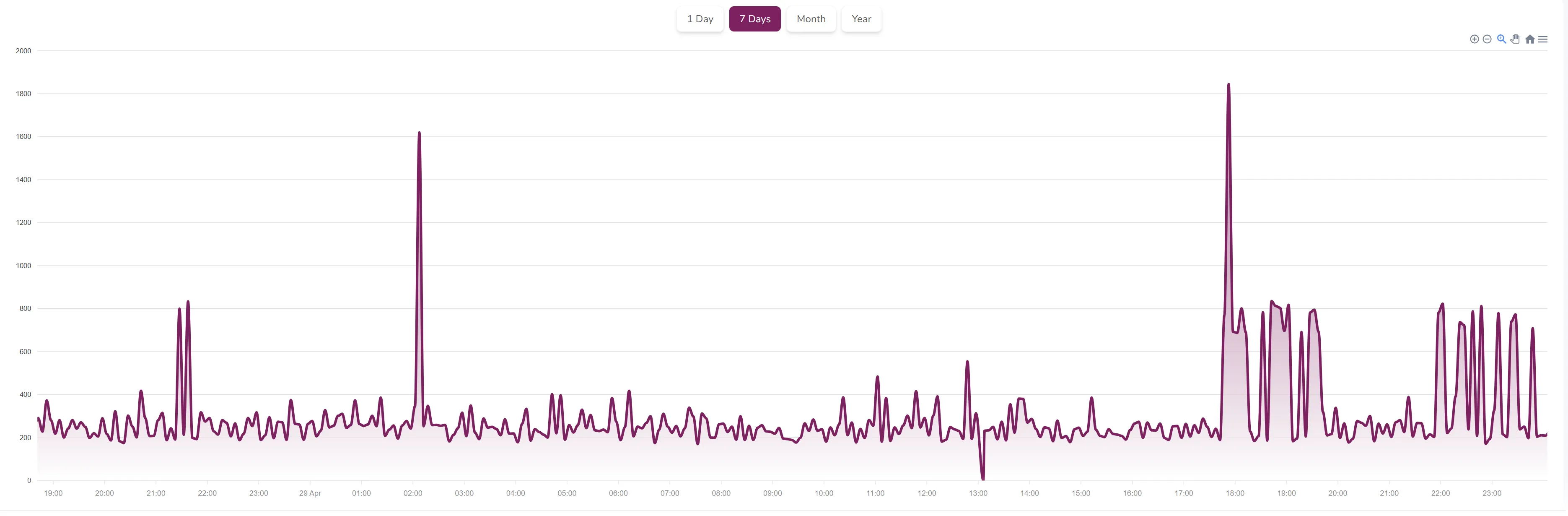
<p>This is a bit different guide than I usually publish, but I really wanted to write about the best WordPress cache plugin I found and personally use. Recently, I needed to manage a WordPress installation, and this is what I observed:</p>

<p><img src="https://www.cyberpunk.tools/assets/wordpress-cloudflare/1.webp" alt="Diagram" /></p>

<p>As you can see, my monitoring shows that the WordPress website mostly responds between 200 &amp; 400ms, which I think is acceptable. However, there are several instances above 1 second, and very often it was around 800ms, which was definitely disappointing.</p>

<p>Long story short, I spent one night figuring out how to make it faster. The solution was to use Cloudflare with the <code class="language-plaintext highlighter-rouge">Super Page Cache</code> WordPress plugin.</p>

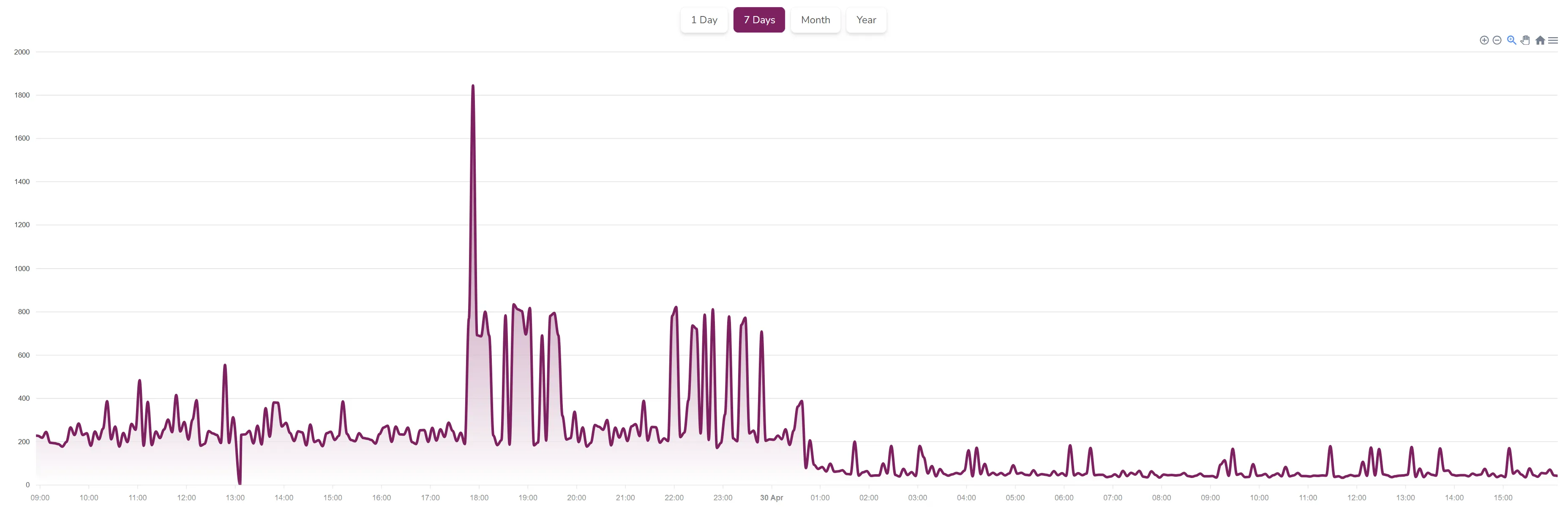
<p>After successful deployment, you can see a new graph from my monitoring. I deployed the <code class="language-plaintext highlighter-rouge">Super Page Cache</code> WordPress plugin around 1:00, and now all requests are between 30ms and 200ms, which is amazing. Basically, I have the same statistics from my static websites that I host on S3!</p>

<p><img src="https://www.cyberpunk.tools/assets/wordpress-cloudflare/7.webp" alt="Diagram" /></p>

<p>Below, I provide a step-by-step guide to deploy the <code class="language-plaintext highlighter-rouge">Super Page Cache</code> WordPress plugin the same way I did.</p>

<h2 id="requirements">Requirements</h2>

<p>So, the first and most obvious requirement is a WordPress website that you want to speed up. Second, you need a free Cloudflare account. Just go to <code class="language-plaintext highlighter-rouge">cloudflare.com</code> and register there.</p>

<h2 id="add-domain-to-cloudflare">Add domain to cloudflare</h2>

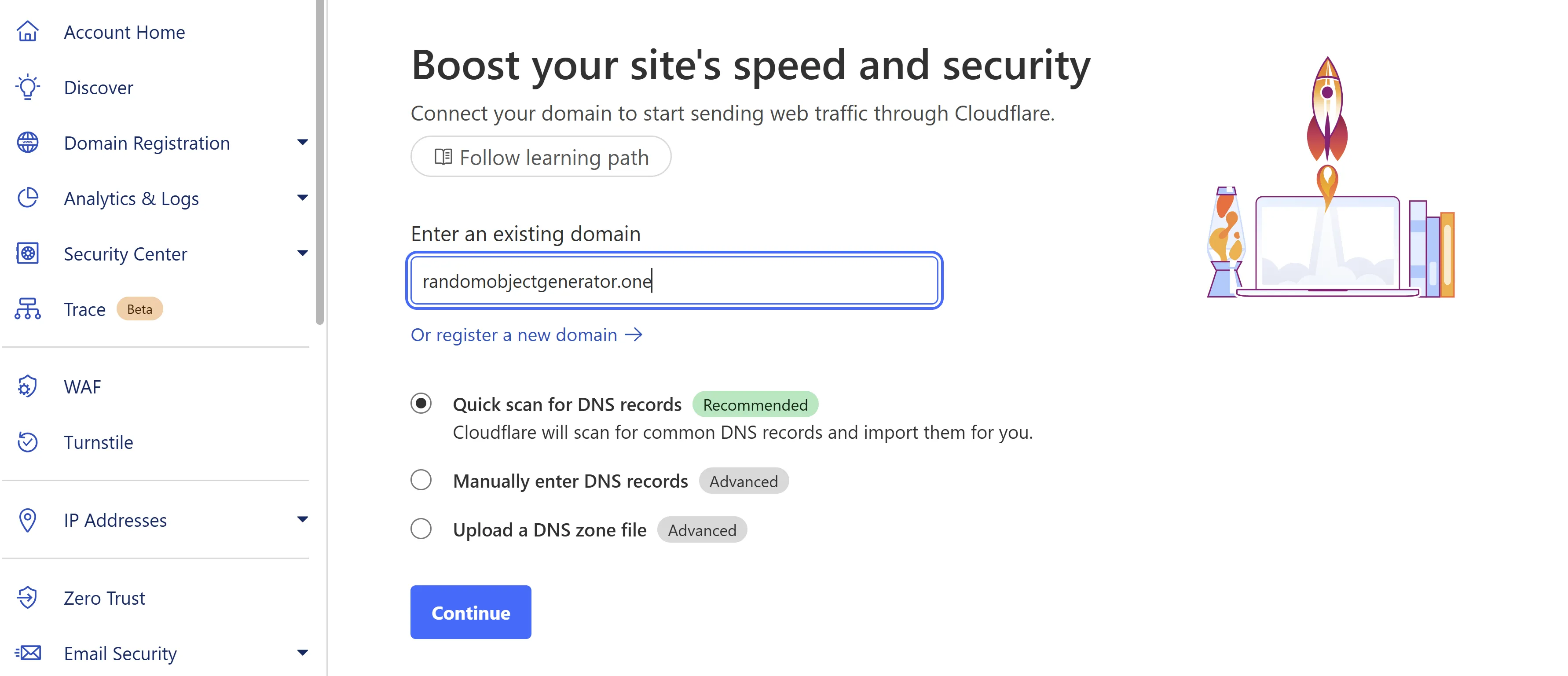
<p>When you have a Cloudflare account, please log in to Cloudflare and on the main screen, add your domain and select quick scan, which should scan your existing DNS records and set up all accordingly.</p>

<p><img src="https://www.cyberpunk.tools/assets/wordpress-cloudflare/2.webp" alt="Diagram" /></p>

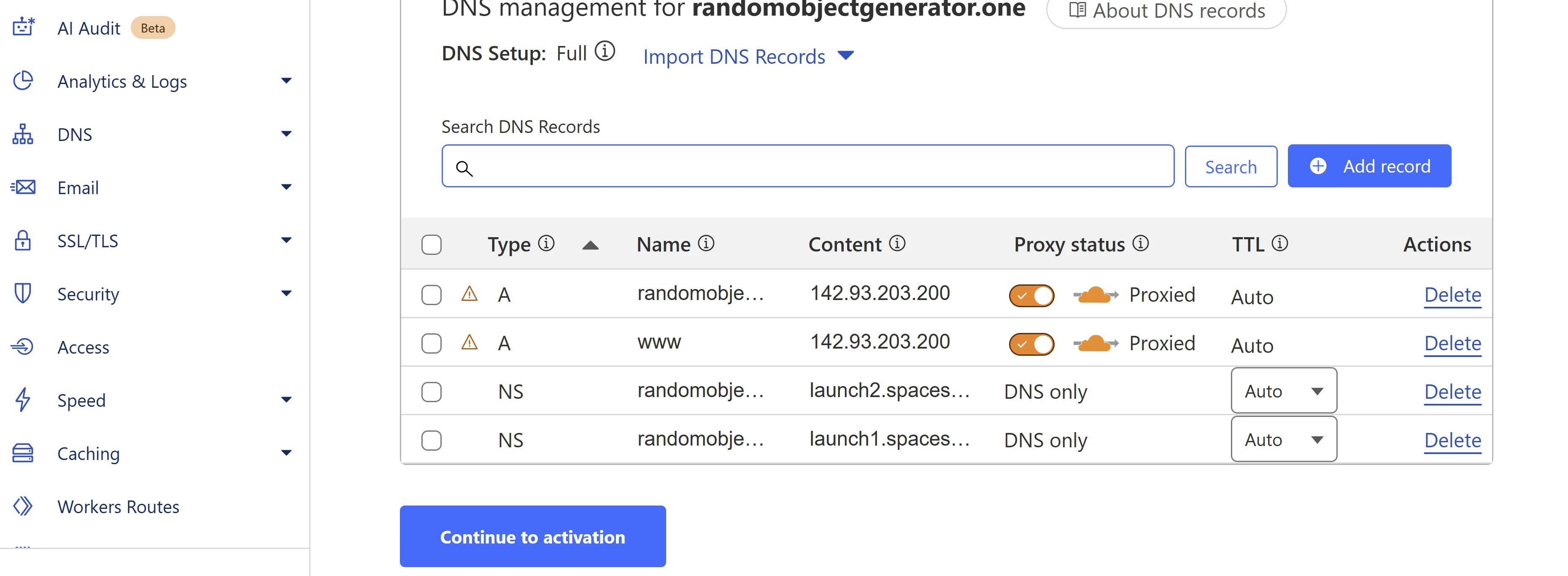
<p>Then select the free plan, then <code class="language-plaintext highlighter-rouge">continue to activation</code>:</p>

<p><img src="https://www.cyberpunk.tools/assets/wordpress-cloudflare/3.webp" alt="Diagram" /></p>

<p>Then you will get to the page where you should get nameservers:</p>

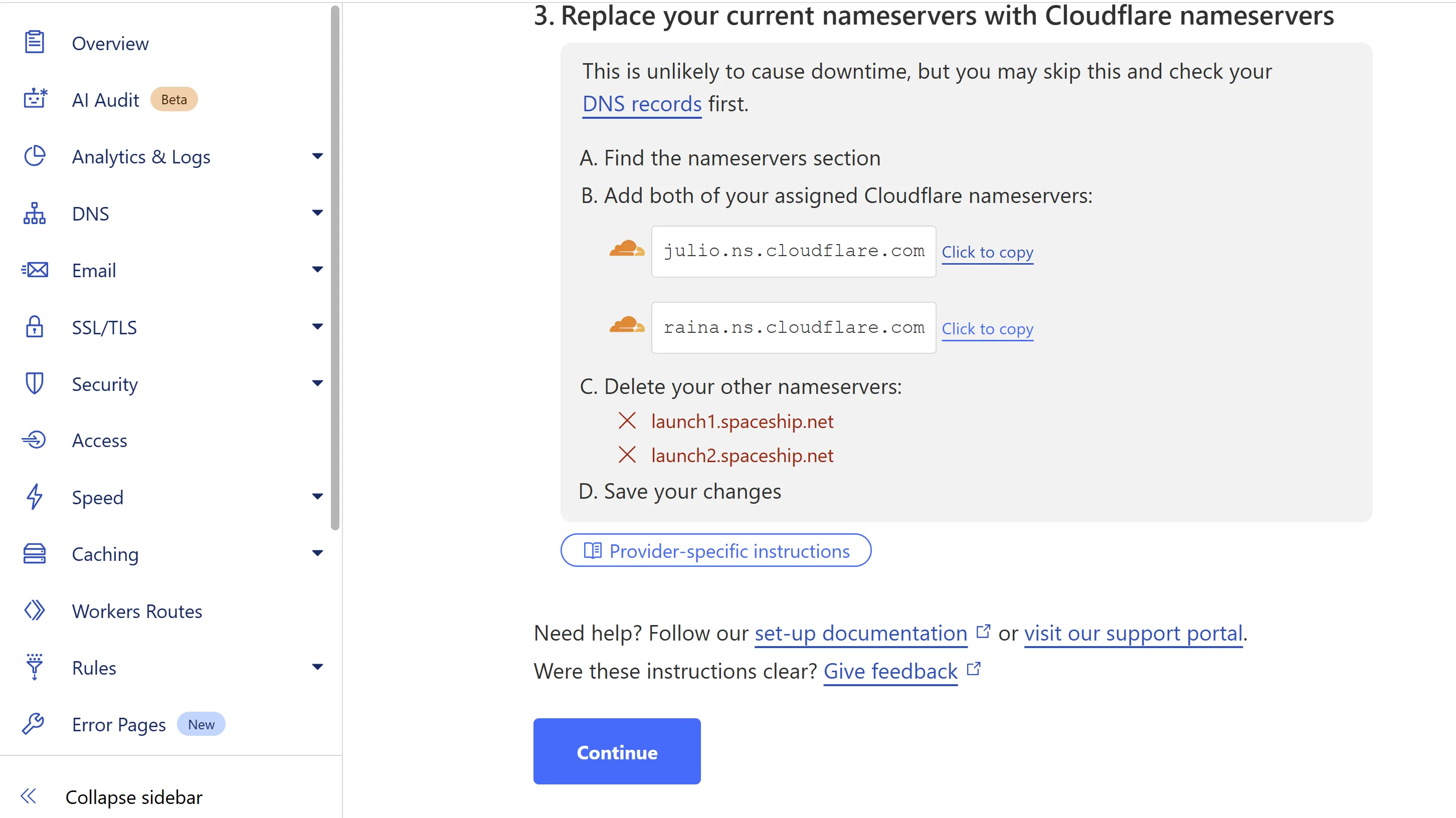
<p><img src="https://www.cyberpunk.tools/assets/wordpress-cloudflare/4.webp" alt="Diagram" /></p>

<p>Now those nameservers you should put in your registrar.</p>

<p>In this example, those servers are:</p>

<div class="language-plaintext highlighter-rouge"><div class="highlight"><pre class="highlight"><code>julio.ns.cloudflare.com
raina.ns.cloudflare.com
</code></pre></div></div>

<p>additional manual from cloudflare:</p>

<p><a href="https://developers.cloudflare.com/dns/nameservers/update-nameservers/#your-domain-uses-a-different-registrar">Update nameservers</a></p>

<p>When you set up your registrar, press continue and then press <code class="language-plaintext highlighter-rouge">check nameservers</code>.</p>

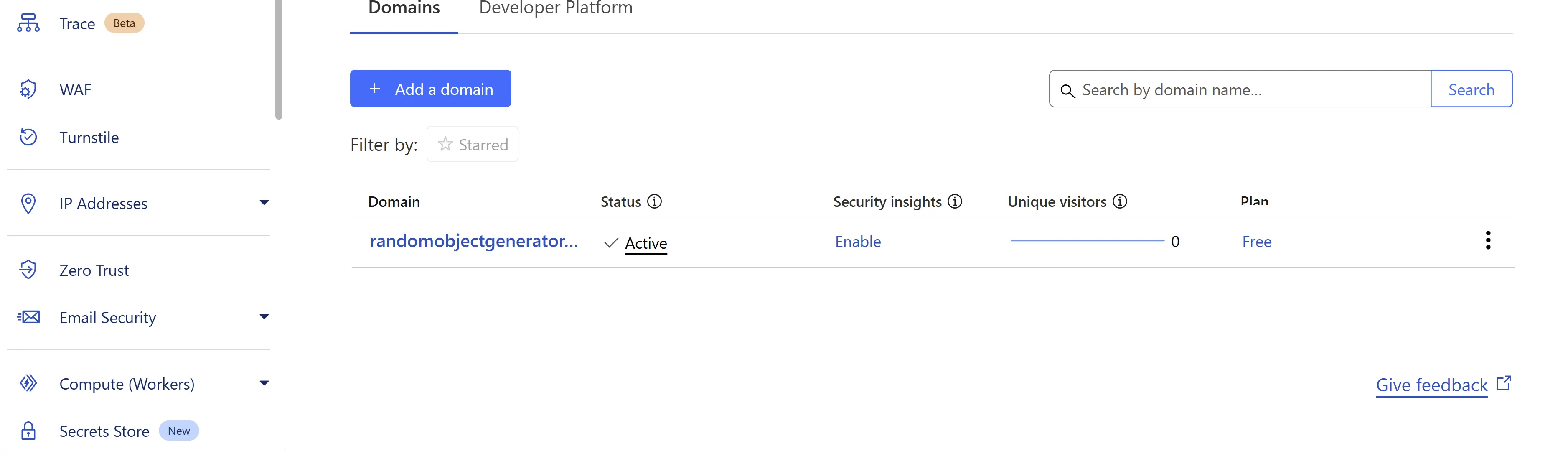
<p>In a few minutes, you should get an email that all is good, and then you can go to the main screen and see that your server is active:</p>

<p><img src="https://www.cyberpunk.tools/assets/wordpress-cloudflare/5.webp" alt="Diagram" /></p>

<p>Obviously, your setup may differ, but on my test installation, I instantly got:</p>

<p><code class="language-plaintext highlighter-rouge">ERR_TOO_MANY_REDIRECTS</code>:</p>

<p><img src="https://www.cyberpunk.tools/assets/wordpress-cloudflare/0.webp" alt="Diagram" /></p>

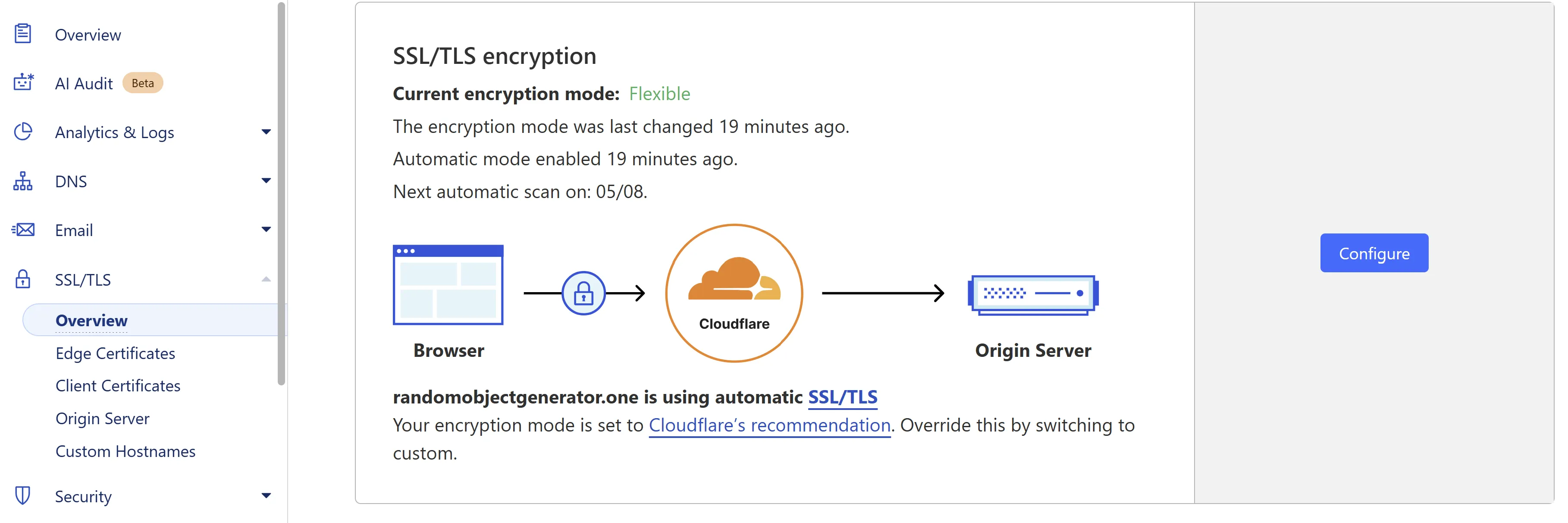
<p>That means the end-user connects to Cloudflare via HTTPS, and then Cloudflare tries to connect to your server via HTTP. My server sees the connection via HTTP, wants to redirect to HTTPS, and it creates a loop. It seems it is because, by default, Cloudflare uses encryption mode as <code class="language-plaintext highlighter-rouge">Flexible</code>:</p>

<p><img src="https://www.cyberpunk.tools/assets/wordpress-cloudflare/6.webp" alt="Diagram" /></p>

<p>To fix it, you can select either <code class="language-plaintext highlighter-rouge">Full</code> or <code class="language-plaintext highlighter-rouge">Full (Strict)</code> encryption. So the connection from Cloudflare and to your server will be encrypted. If you use <code class="language-plaintext highlighter-rouge">Full (Strict)</code>, make sure you use a valid certificate on your server or one which Cloudflare provides, otherwise, you will face issues. And if you stick with <code class="language-plaintext highlighter-rouge">Full (Strict)</code>, make sure you don’t forget to renew the expiring certificate, otherwise, you might end up in the same troubles as some big corporate companies.</p>

<p>Long story short, after setting to <code class="language-plaintext highlighter-rouge">Full (Strict)</code>, my WordPress website was online again!</p>

<h2 id="configure-super-page-cache-wordpress-plugin">Configure Super Page Cache WordPress plugin</h2>

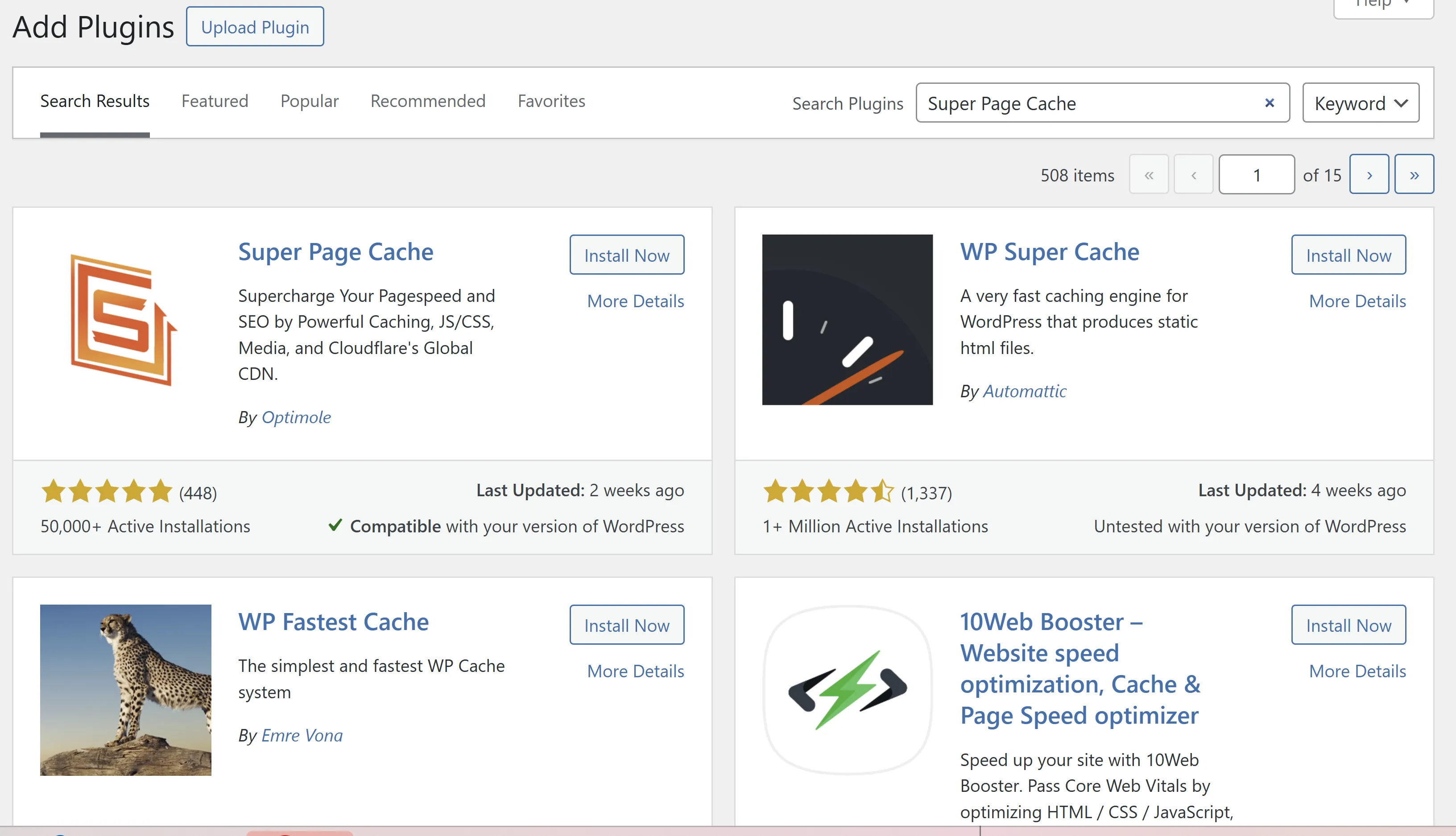
<p>Next step would be to install the plugin on your WordPress. Just go to your WordPress admin panel, then to plugins, and hit <code class="language-plaintext highlighter-rouge">Add Plugin</code>, and in the search bar, put <code class="language-plaintext highlighter-rouge">Super Page Cache</code>:</p>

<p><img src="https://www.cyberpunk.tools/assets/wordpress-cloudflare/8.webp" alt="Diagram" /></p>

<p>Click <code class="language-plaintext highlighter-rouge">Install Now</code> and then click <code class="language-plaintext highlighter-rouge">Activate</code>, then it will open new screen:</p>

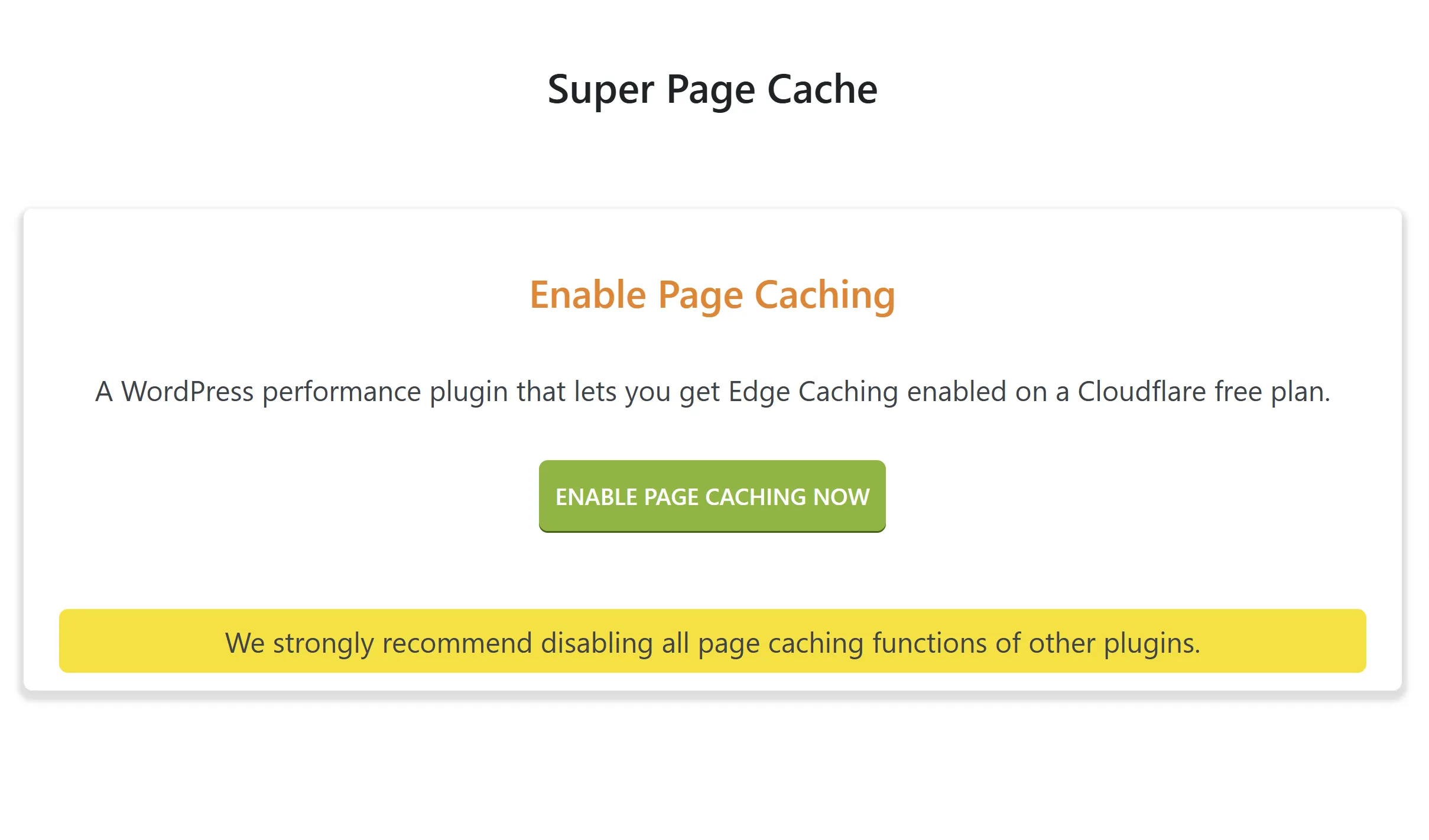
<p><img src="https://www.cyberpunk.tools/assets/wordpress-cloudflare/9.webp" alt="Diagram" /></p>

<p>Please make sure you disabled caching of any other plugins if there were any!</p>

<p>Then hit <code class="language-plaintext highlighter-rouge">ENABLE PAGE CACHING NOW</code></p>

<p>You should see confirmation with <code class="language-plaintext highlighter-rouge">Page cache enabled successfully</code></p>

<h2 id="getting-cloudflare-api-key">Getting cloudflare API key</h2>

<p>Next, we need to get an API key so we can set up the Super Page Cache plugin to authorize and update necessary settings in Cloudflare.</p>

<p>To get the API key, go to <code class="language-plaintext highlighter-rouge">Profile</code> =&gt; <code class="language-plaintext highlighter-rouge">API Tokens</code> and click <code class="language-plaintext highlighter-rouge">View</code> under <code class="language-plaintext highlighter-rouge">Global API Key</code>. Make sure you secure your API key, don’t share it with anyone!</p>

<p>When we have the key, we can continue with the Super Page Cache plugin</p>

<h2 id="configuring-cloudflare-cdn--edge-caching-in-plugin">Configuring Cloudflare (CDN &amp; Edge Caching) in plugin</h2>

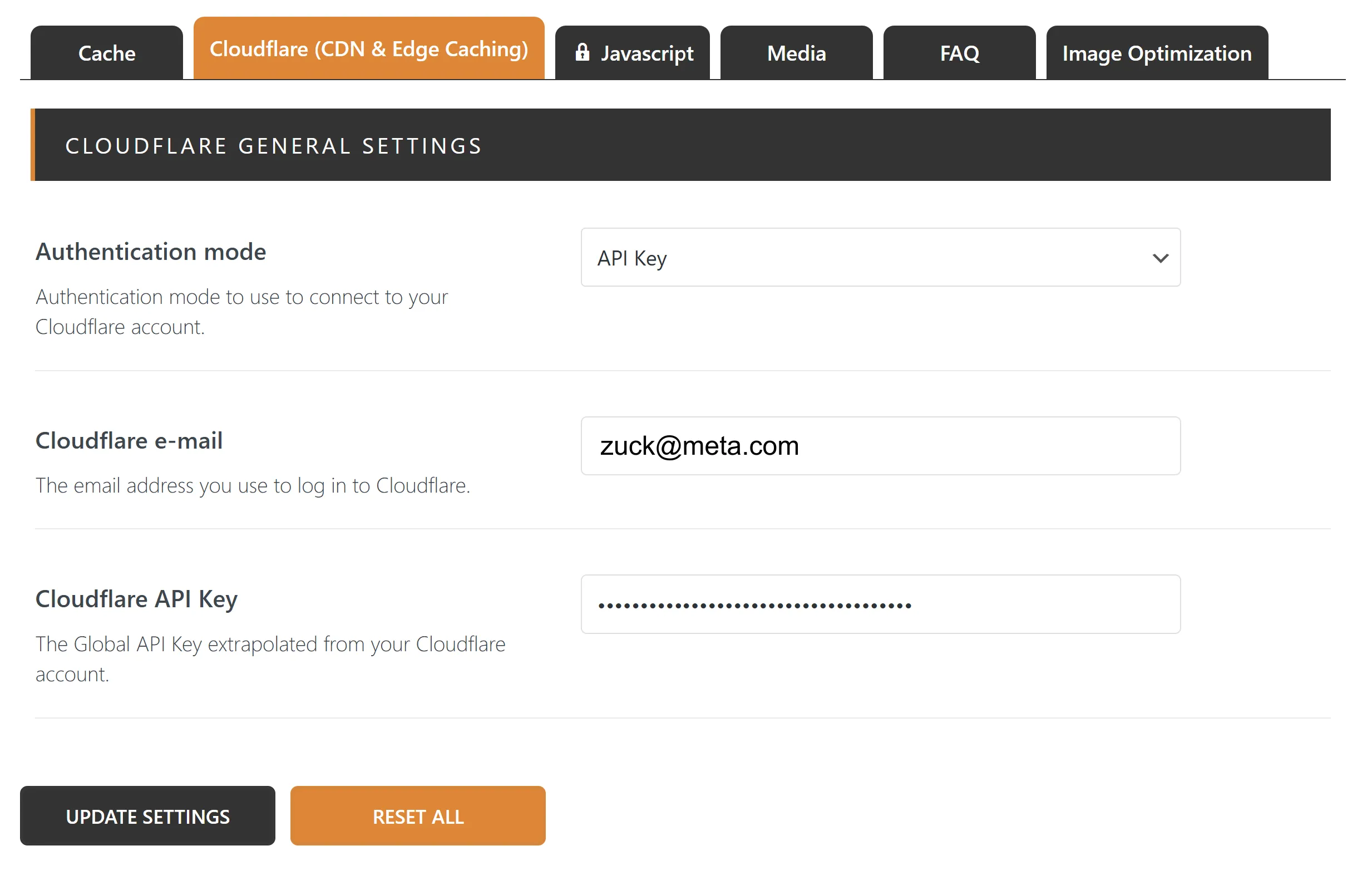
<p>Go back to your <code class="language-plaintext highlighter-rouge">WordPress admin page</code> =&gt; <code class="language-plaintext highlighter-rouge">Plugins</code> =&gt; <code class="language-plaintext highlighter-rouge">Super Page Cache</code> =&gt; <code class="language-plaintext highlighter-rouge">Settings</code> =&gt; <code class="language-plaintext highlighter-rouge">Cloudflare (CDN &amp; Edge Caching)</code>. Under <code class="language-plaintext highlighter-rouge">Cloudflare e-mail</code>, put your Cloudflare email, and under <code class="language-plaintext highlighter-rouge">Cloudflare API Key</code>, the key we just grabbed from Cloudflare, and press <code class="language-plaintext highlighter-rouge">UPDATE SETTINGS</code>:</p>

<p><img src="https://www.cyberpunk.tools/assets/wordpress-cloudflare/10.webp" alt="Diagram" /></p>

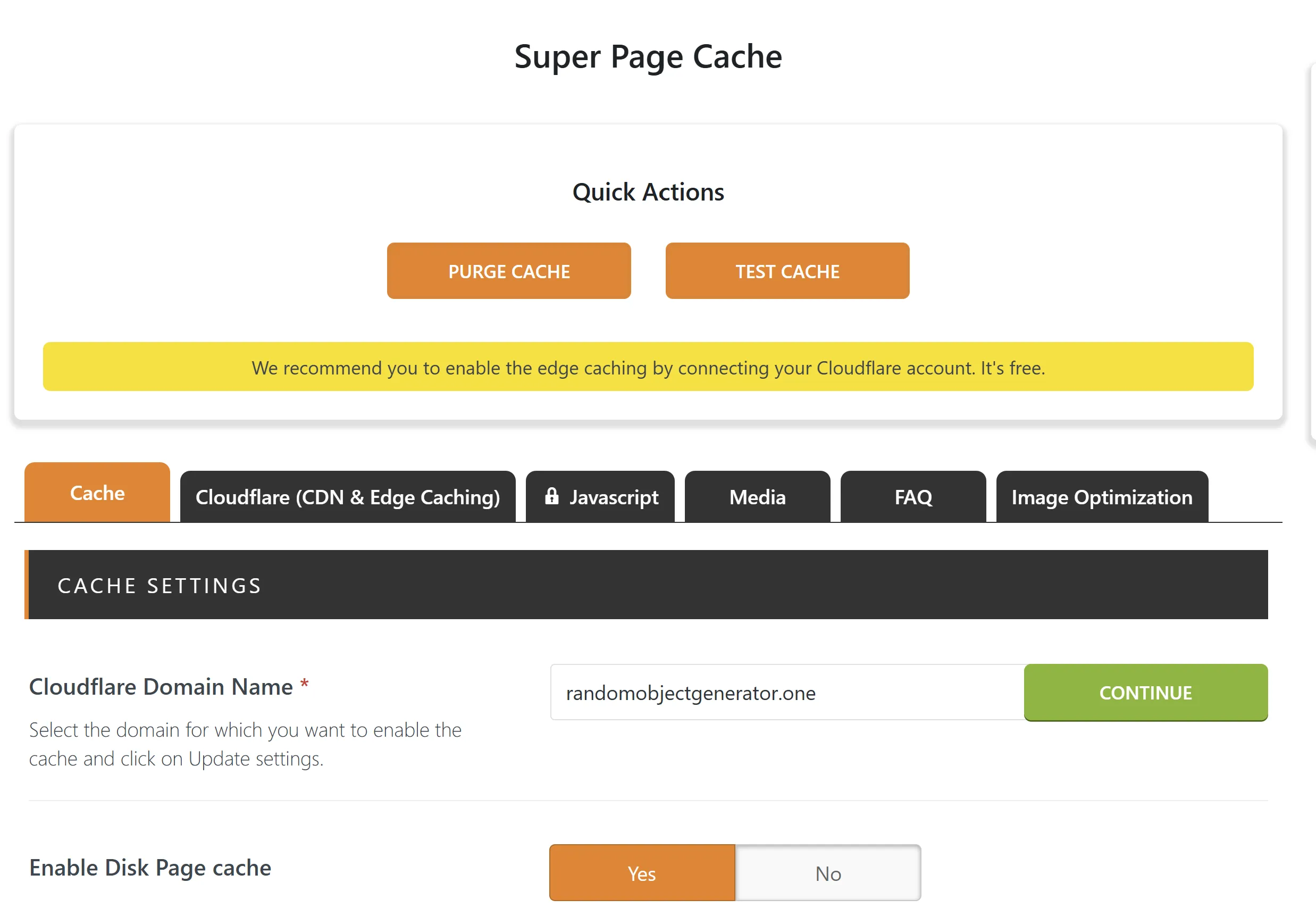
<p>Then on the new window, make sure you have the correct domain name under <code class="language-plaintext highlighter-rouge">Cloudflare Domain Name</code>. If you have several ones, for me, it took straight away the correct one:</p>

<p><img src="https://www.cyberpunk.tools/assets/wordpress-cloudflare/11.webp" alt="Diagram" /></p>

<p>Hit <code class="language-plaintext highlighter-rouge">Continue</code>, and you should be good!</p>

<h2 id="validate-super-page-cache-plugin">Validate Super Page Cache plugin</h2>

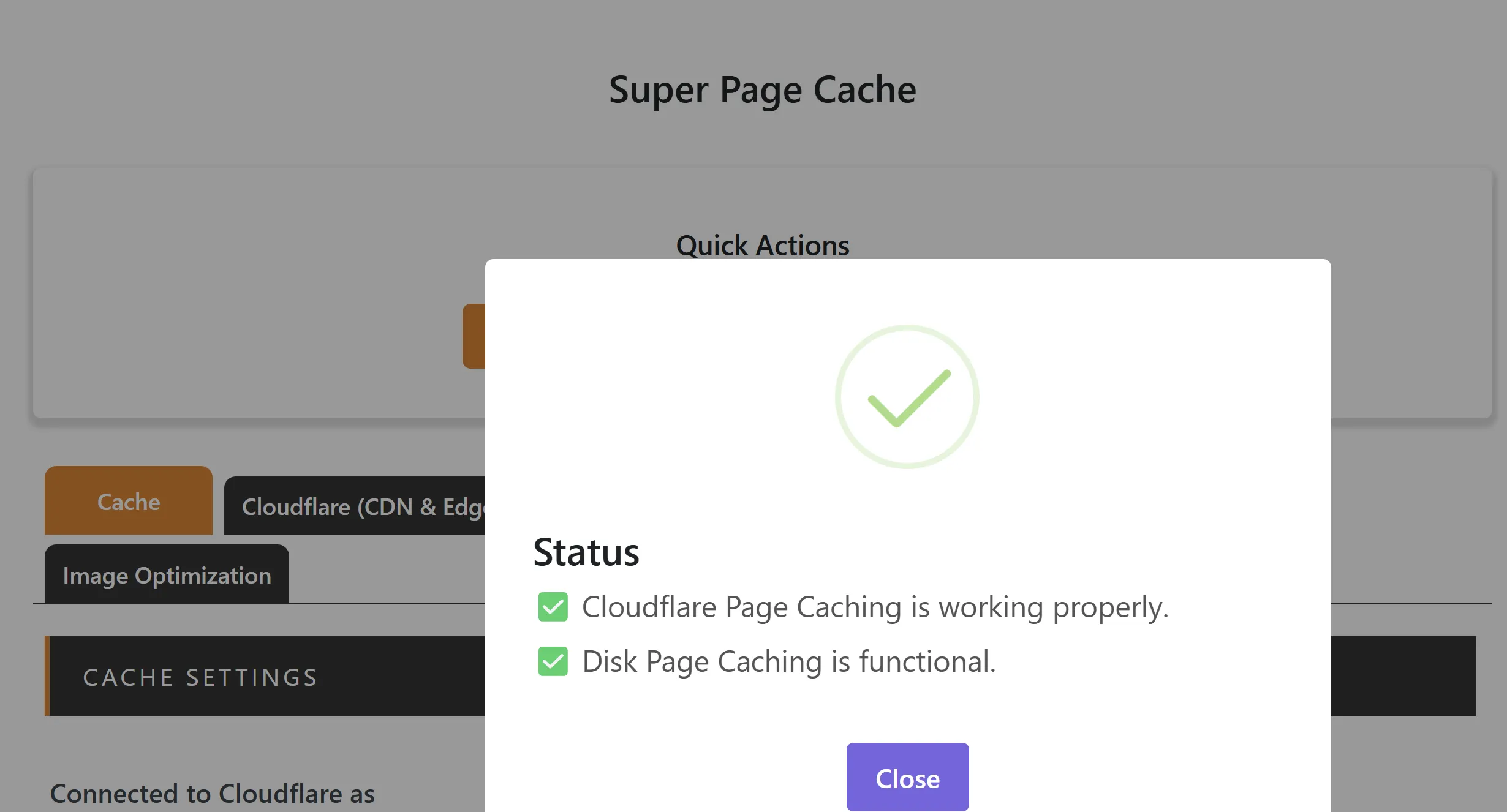
<p>Next, a good idea would be to double-check that all is good, so on the same page, just click <code class="language-plaintext highlighter-rouge">TEST CACHE</code>, and if all is good, you should see this screen with 2 green ticks - <code class="language-plaintext highlighter-rouge">Cloudflare Page Caching is working properly</code> &amp; <code class="language-plaintext highlighter-rouge">Disk Page Caching is functional</code>:</p>

<p><img src="https://www.cyberpunk.tools/assets/wordpress-cloudflare/12.webp" alt="Diagram" /></p>

<p>And we are done!</p>

<h2 id="conclusion">Conclusion</h2>

<p>Obviously, the <code class="language-plaintext highlighter-rouge">Super Page Cache</code> plugin is just one piece of your infrastructure/deployment, and it is not a silver bullet, and if you have several underlying issues with your setup, I doubt that it will help a lot. Nevertheless, it can speed up your WordPress significantly, which is not just promises but backed up with statistics from my monitoring of my WordPress setup before and after I installed the plugin. I was not paid or sponsored by the author of the plugin, I just felt that I must share this with others, because for me, this plugin worked really well and way above my expectations, and most importantly, this costs nothing. You get all this performance improvement for free!</p>]]></content><author><name>Jurijs Ivolga</name><email>jurijs.ivolga@gmail.com</email></author><category term="jekyll" /><category term="update" /><summary type="html"><![CDATA[Overview]]></summary><media:thumbnail xmlns:media="http://search.yahoo.com/mrss/" url="https://www.cyberpunk.tools/assets/wordpress-cloudflare/7.webp" /><media:content medium="image" url="https://www.cyberpunk.tools/assets/wordpress-cloudflare/7.webp" xmlns:media="http://search.yahoo.com/mrss/" /></entry><entry><title type="html">How to manage Let’s Encrypt certificate on EC2 instance</title><link href="https://www.cyberpunk.tools/jekyll/update/2025/03/31/lego-ec2.html" rel="alternate" type="text/html" title="How to manage Let’s Encrypt certificate on EC2 instance" /><published>2025-03-31T08:00:00+00:00</published><updated>2025-03-31T08:00:00+00:00</updated><id>https://www.cyberpunk.tools/jekyll/update/2025/03/31/lego-ec2</id><content type="html" xml:base="https://www.cyberpunk.tools/jekyll/update/2025/03/31/lego-ec2.html"><![CDATA[<p>In this guide, I’ll provide a short manual on how to create and manage Let’s Encrypt certificates on your EC2 instance using <a href="https://go-acme.github.io/lego/">Lego</a> (a Let’s Encrypt/ACME client and library written in Go). We’ll use the DNS-01 challenge, and the instance will have an appropriate IAM role so only the instance itself can manage the <code class="language-plaintext highlighter-rouge">_acme-challenge</code> TXT record for the domain.</p>

<h3 id="why-use-lets-encrypt-on-ec2">Why use Let’s Encrypt on EC2?</h3>

<p>Why even bother using Let’s Encrypt in AWS? First of all — simpler setup. You don’t need an ALB or CloudFront, which also means lower cost. Sometimes, your application isn’t something you can easily put behind a load balancer — for example, any SIP proxy. So in some cases, you’ll want Let’s Encrypt certs directly on the EC2 instance.</p>

<h3 id="why-dns-01-challenge">Why DNS-01 challenge?</h3>

<p>If you’re running a SIP application, why open port 80 at all if you don’t need to? Or maybe port 80 is already being used by another service. Personally, I just prefer the DNS-01 challenge — fewer firewall holes to worry about.</p>

<h3 id="overview">Overview</h3>

<p>We’ll create an instance profile and assign it to our EC2 instance so the instance itself can have permissions to add or remove DNS records, which is required for the DNS-01 challenge.</p>

<h2 id="requirements">Requirements</h2>

<p>I assume you already have an EC2 instance up and running. Here’s an example Terraform configuration to spin up a test instance:</p>

<div class="language-plaintext highlighter-rouge"><div class="highlight"><pre class="highlight"><code>terraform {  
  required_providers {  
    aws = {  
      source = "hashicorp/aws"  
    }  
  }  
}  

provider "aws" {  
  region  = "us-east-1"  
  profile = "dev"  
}  

resource "aws_key_pair" "jurijs" {  
  key_name   = "jurijs-key"  
  public_key = "ssh-rsa AAAAB3N..."  
}  

resource "aws_eip" "dev" {  
  instance = aws_instance.dev.id  
  domain   = "vpc"  
}  

output "aws_eip" {  
  value = aws_eip.dev.public_ip  
}  

output "aws_private" {  
  value = aws_instance.dev.private_ip  
}  

resource "aws_instance" "dev" {  
  ami                    = "ami-0facb4427ff2f68d4"  
  instance_type          = "t2.micro"  
  key_name               = aws_key_pair.jurijs.key_name  
  vpc_security_group_ids = [aws_security_group.dev.id]  
}  

resource "aws_security_group" "dev" {  
  name_prefix = "dev"  
}  

resource "aws_security_group_rule" "outbound" {  
  security_group_id = aws_security_group.dev.id  
  description       = "all-outbound-allowed"  
  from_port         = 0  
  to_port           = 0  
  protocol          = "-1"  
  type              = "egress"  
  cidr_blocks       = ["0.0.0.0/0"]  
}  

resource "aws_security_group_rule" "SSH" {  
  security_group_id = aws_security_group.dev.id  
  description       = "Allow SSH from everywhere"  
  from_port         = 22  
  to_port           = 22  
  protocol          = "tcp"  
  type              = "ingress"  
  cidr_blocks       = ["0.0.0.0/0"]  
}  
</code></pre></div></div>

<h2 id="create-iam-profile-for-lego">Create IAM profile for Lego</h2>

<p>For the instance profile, you can use my Terraform module from GitHub:</p>

<p><a href="https://github.com/os11k/terraform-iam-lego">https://github.com/os11k/terraform-iam-lego</a></p>

<p>Then add the following:</p>

<div class="language-plaintext highlighter-rouge"><div class="highlight"><pre class="highlight"><code>module "lego-iam" {  
  source     = "../modules/lego-iam"  
  hostname   = ["my-domain.com", "www.my-domain.com"]  
  hostedzone = "7AZKFFF"  
}  
</code></pre></div></div>

<p>And make sure the EC2 instance has the IAM instance profile assigned:</p>

<div class="language-plaintext highlighter-rouge"><div class="highlight"><pre class="highlight"><code>resource "aws_instance" "instance-with-letsencrypt" {  
  ...  
  iam_instance_profile = module.lego-iam.instance-profile-name  
  ...  
}  
</code></pre></div></div>

<h2 id="install-lego-and-issue-the-certificate">Install Lego and Issue the Certificate</h2>

<p>Install the necessary packages and issue the certificate with the following commands:</p>

<div class="language-plaintext highlighter-rouge"><div class="highlight"><pre class="highlight"><code>curl -s https://api.github.com/repos/go-acme/lego/releases/latest | grep "browser_download_url" | grep "linux_amd64.tar.gz" | cut -d '"' -f 4 | xargs curl -LO -#  
tar xzvf lego_v*.tar.gz  
install lego /usr/local/bin/  

export AWS_REGION=us-east-1  

/usr/local/bin/lego --accept-tos --dns route53 --email="my-gmail@gmail.com" --domains="my-domain.com" --domains="www.my-domain.com" --path="/etc/lego" run
</code></pre></div></div>

<h2 id="validate-the-certificate">Validate the Certificate</h2>

<p>To verify the certificate, run:</p>

<div class="language-plaintext highlighter-rouge"><div class="highlight"><pre class="highlight"><code>cat /etc/lego/certificates/my-domain.com.crt  
</code></pre></div></div>

<p>You should see output similar to:</p>

<div class="language-plaintext highlighter-rouge"><div class="highlight"><pre class="highlight"><code>-----BEGIN CERTIFICATE-----  
MIIDxDCCA0mgAwIBAgISBrctmxC+XMJfDQGtEo89F6aaMAoGCCqGSM49BAMDMDIx  
...  
-----END CERTIFICATE-----  

-----BEGIN CERTIFICATE-----  
MIIEVzCCAj+gAwIBAgIRAIOPbGPOsTmMYgZigxXJ/d4wDQYJKoZIhvcNAQELBQAw  
...  
-----END CERTIFICATE-----  
</code></pre></div></div>

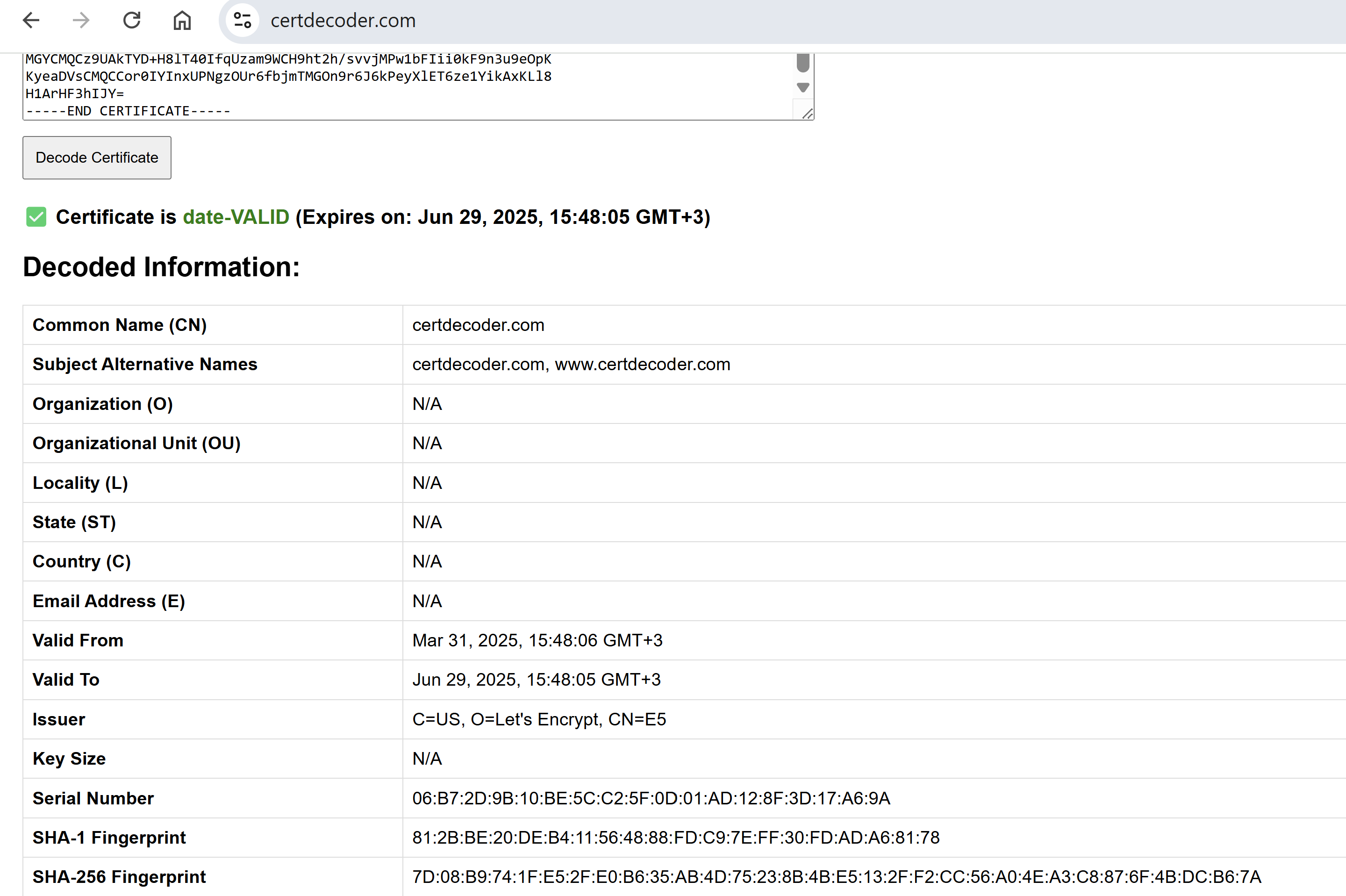
<p>The first certificate is for <code class="language-plaintext highlighter-rouge">my-domain.com</code> and <code class="language-plaintext highlighter-rouge">www.my-domain.com</code>.</p>

<p>Visit <a href="https://certdecoder.com/">https://certdecoder.com/</a> to verify the certificate. You should see that the Common Name is <code class="language-plaintext highlighter-rouge">my-domain.com</code> and the Subject Alternative Names (SANs) include both <code class="language-plaintext highlighter-rouge">my-domain.com</code> and <code class="language-plaintext highlighter-rouge">www.my-domain.com</code>.</p>

<p>Note: In the screenshot below, the example shows <code class="language-plaintext highlighter-rouge">certdecoder.com</code> instead of <code class="language-plaintext highlighter-rouge">my-domain.com</code>. The certificate is valid for 90 days.</p>

<p><img src="https://www.cyberpunk.tools/assets/lego-ec2/1.png" alt="Diagram" /></p>

<p>The second certificate is Let’s Encrypt’s root certificate. You can inspect it if desired, though it is not essential for this guide.</p>

<h2 id="renewal-via-cron">Renewal via Cron</h2>

<p>Set up a cron job for automatic renewal with these entries:</p>

<div class="language-plaintext highlighter-rouge"><div class="highlight"><pre class="highlight"><code>AWS_REGION=us-east-1  
12 1 * * 6 /usr/local/bin/lego --dns route53 --email="my-gmail@gmail.com" --domains="my-domain.com" --domains="www.my-domain.com" --path="/etc/lego" renew &gt;&gt; /var/log/lego.log 2&gt;&amp;1  
12 2 * * 6 systemctl reload nginx.service  
</code></pre></div></div>

<ul>
  <li>The first line ensures the AWS region is set.</li>
  <li>The second line handles the renewal process.</li>
  <li>The third line reloads nginx so that any new certificate is applied. (If you’re using another service like Apache or Kamailio, replace this command accordingly.)</li>
</ul>

<h2 id="conclusion">Conclusion</h2>

<p>You now have Let’s Encrypt set up directly on your EC2 instance using the DNS-01 challenge with the proper IAM permissions. Certificates are issued and automatically renewed via cron.</p>

<p>Keep an eye on <code class="language-plaintext highlighter-rouge">/var/log/lego.log</code> — if renewal fails, you’ll find useful details there for troubleshooting.</p>]]></content><author><name>Jurijs Ivolga</name><email>jurijs.ivolga@gmail.com</email></author><category term="jekyll" /><category term="update" /><summary type="html"><![CDATA[In this guide, I’ll provide a short manual on how to create and manage Let’s Encrypt certificates on your EC2 instance using Lego (a Let’s Encrypt/ACME client and library written in Go). We’ll use the DNS-01 challenge, and the instance will have an appropriate IAM role so only the instance itself can manage the _acme-challenge TXT record for the domain.]]></summary><media:thumbnail xmlns:media="http://search.yahoo.com/mrss/" url="https://www.cyberpunk.tools/assets/lego-ec2/2.png" /><media:content medium="image" url="https://www.cyberpunk.tools/assets/lego-ec2/2.png" xmlns:media="http://search.yahoo.com/mrss/" /></entry><entry><title type="html">How to Store Terraform State in Azure with a Bit More Security in Mind</title><link href="https://www.cyberpunk.tools/jekyll/update/2025/02/15/storing-terraform-state-securely-in-azure.html" rel="alternate" type="text/html" title="How to Store Terraform State in Azure with a Bit More Security in Mind" /><published>2025-02-15T17:00:00+00:00</published><updated>2025-02-15T17:00:00+00:00</updated><id>https://www.cyberpunk.tools/jekyll/update/2025/02/15/storing-terraform-state-securely-in-azure</id><content type="html" xml:base="https://www.cyberpunk.tools/jekyll/update/2025/02/15/storing-terraform-state-securely-in-azure.html"><![CDATA[<h2 id="thank-you-ned-in-the-cloud">Thank You “Ned in the Cloud”</h2>

<p>First and foremost, I would like to thank “Ned in the Cloud” for this video:</p>

<p><a href="https://www.youtube.com/watch?v=iVyKvopGnrQ">Youtube: Using Azure Storage for Terraform State - Best Practices</a></p>

<p>That video was a starting point for this article, and I used it extensively to write my code here. Thank you!</p>

<h2 id="initial-setup-using-official-microsoft-documentation">Initial Setup Using Official Microsoft Documentation</h2>

<p>So, you are ready to deploy your first resource in Azure using Terraform, and obviously, you want to save the state in Azure storage, just like you do with AWS in S3. That should not be difficult, right?</p>

<p>Okay, let’s Google “Terraform state in Azure storage.” The first link, at least for me, is this manual from Microsoft:</p>

<p><a href="https://learn.microsoft.com/en-us/azure/developer/terraform/store-state-in-azure-storage?tabs=azure-cli">Microsoft: Store Terraform state in Azure Storage</a></p>

<p>Official documentation—wow, that should be the best place to start, right?</p>

<p>At this point, you should suspect that something is not quite right. Too many “right?”</p>

<p>In any case, let’s follow the documentation and set up everything as it says. Wow, that was easy, great!</p>

<p>But wait. Some eagle-eyed readers probably noticed something a bit off… Like this:</p>

<blockquote>
  <p><em>In this example, Terraform authenticates to the Azure storage account using an Access Key. In a production deployment, it’s recommended to evaluate the available authentication options supported by the azurerm backend and to use the most secure option for your use case.</em></p>
</blockquote>

<p>What the hell?? What does this mean in plain English? Let me translate this for you: “You should never ever use this in production; this is a huge security flaw.”</p>

<p>Don’t believe me? Just Google “why is it bad to use Access Key to access Azure storage account”:</p>

<p><a href="https://www.tenable.com/blog/access-keys-an-unintended-backdoor-by-design-to-azure-storage-accounts-data">Access Keys: An Unintended Backdoor-by-Design to Azure Storage Accounts Data</a></p>

<p><a href="https://orca.security/resources/blog/azure-shared-key-authorization-exploitation/">From listKeys to Glory: How We Achieved a Subscription Privilege Escalation and RCE by Abusing Azure Storage Account Keys</a></p>

<p>Okay, now we know that even official documentation is not always the best way to start.</p>

<h2 id="other-bloggers-and-articles">Other Bloggers and Articles</h2>

<p>So, I started to look beyond official documentation and tried to find some simple and straightforward manuals that just work. Unfortunately, the majority of what I found was quite bad, if not very bad. I stumbled upon one document where it was recommended to set up your Azure storage account with <code class="language-plaintext highlighter-rouge">allow_blob_public_access = true</code>!!!! That is a legacy setting now, but nevertheless, if you see “public access” in your config, you should suspect something is wrong! You don’t want any public access to your Terraform state, which could contain sensitive data! Never ever do this!</p>

<p>So, after searching and mostly watching “Ned in the Cloud” over and over, I came up with my own setup.</p>

<h2 id="solution-use-entra-id-formerly-azure-ad">Solution: Use Entra ID (Formerly Azure AD)</h2>

<p>In my opinion, the best approach is using Entra ID (formerly Azure AD). This eliminates the need for Access Keys, which are a huge security risk and difficult to rotate. With Entra ID, you get more granular access control, better auditing, and overall tighter security.</p>

<h2 id="requirements">Requirements</h2>

<p>Before we can start deploying this code, we will need to make sure you have everything that is needed. First and foremost, you need an account in the Azure portal, plus OpenTofu or Terraform and Azure CLI installed. Here, I will use OpenTofu.</p>

<p>If you’re ready, then log in with Azure CLI by running <code class="language-plaintext highlighter-rouge">az login</code>. It will give you a link that you need to open in a browser and log in to Azure, just like when you visit <a href="https://portal.azure.com/">https://portal.azure.com/</a>. Pick your account and log in. Then, return to the command line and select a subscription if you have more than one. You will see something like this:</p>

<figure class="highlight"><pre><code class="language-bash" data-lang="bash"><span class="o">[</span>Tenant and subscription selection]

No     Subscription name    Subscription ID                       Tenant
<span class="nt">-----</span>  <span class="nt">-------------------</span>  <span class="nt">------------------------------------</span>  <span class="nt">-----------------</span>
<span class="o">[</span>1] <span class="k">*</span>  Free Trial           axxxxxxx-12xx-4xxx-bxxx-fxxxxxxxxxxx  Default Directory</code></pre></figure>

<p>Press enter or select your subscription by providing the respective number (1 in our case) and pressing enter. Now you should be logged in.</p>

<h2 id="terraform-code-to-set-up-storage-account-and-container">Terraform Code to Set Up Storage Account and Container</h2>

<p>Create <code class="language-plaintext highlighter-rouge">main.tf</code> and put this code there:</p>

<figure class="highlight"><pre><code class="language-bash" data-lang="bash">terraform <span class="o">{</span>
  required_providers <span class="o">{</span>
    azurerm <span class="o">=</span> <span class="o">{</span>
      <span class="nb">source</span>  <span class="o">=</span> <span class="s2">"hashicorp/azurerm"</span>
      version <span class="o">=</span> <span class="s2">"~&gt;3.0"</span>
    <span class="o">}</span>
    random <span class="o">=</span> <span class="o">{</span>
      <span class="nb">source</span>  <span class="o">=</span> <span class="s2">"hashicorp/random"</span>
      version <span class="o">=</span> <span class="s2">"~&gt;3.0"</span>
    <span class="o">}</span>
  <span class="o">}</span>
<span class="o">}</span>

provider <span class="s2">"azurerm"</span> <span class="o">{</span>
  features <span class="o">{}</span>
  storage_use_azuread <span class="o">=</span> <span class="nb">true</span>
<span class="o">}</span>

resource <span class="s2">"random_string"</span> <span class="s2">"resource_code"</span> <span class="o">{</span>
  length  <span class="o">=</span> 5
  special <span class="o">=</span> <span class="nb">false
  </span>upper   <span class="o">=</span> <span class="nb">false</span>
<span class="o">}</span>

resource <span class="s2">"azurerm_resource_group"</span> <span class="s2">"tfstate"</span> <span class="o">{</span>
  name     <span class="o">=</span> <span class="s2">"tfstate"</span>
  location <span class="o">=</span> <span class="s2">"eastus2"</span>
  tags <span class="o">=</span> <span class="o">{</span>
    ManagedBy <span class="o">=</span> <span class="s2">"Terraform"</span>
  <span class="o">}</span>
<span class="o">}</span>

resource <span class="s2">"azurerm_storage_account"</span> <span class="s2">"tfstate"</span> <span class="o">{</span>
  name                            <span class="o">=</span> <span class="s2">"tfstate</span><span class="k">${</span><span class="nv">random_string</span><span class="p">.resource_code.result</span><span class="k">}</span><span class="s2">"</span>
  resource_group_name             <span class="o">=</span> azurerm_resource_group.tfstate.name
  location                        <span class="o">=</span> azurerm_resource_group.tfstate.location
  account_tier                    <span class="o">=</span> <span class="s2">"Standard"</span>
  account_kind                    <span class="o">=</span> <span class="s2">"StorageV2"</span>
  account_replication_type        <span class="o">=</span> <span class="s2">"GRS"</span>
  min_tls_version                 <span class="o">=</span> <span class="s2">"TLS1_2"</span>
  shared_access_key_enabled       <span class="o">=</span> <span class="nb">false
  </span>default_to_oauth_authentication <span class="o">=</span> <span class="nb">true
  </span>allow_nested_items_to_be_public <span class="o">=</span> <span class="nb">false

  </span>blob_properties <span class="o">{</span>
    versioning_enabled            <span class="o">=</span> <span class="nb">true
    </span>change_feed_enabled           <span class="o">=</span> <span class="nb">true
    </span>change_feed_retention_in_days <span class="o">=</span> 90
    last_access_time_enabled      <span class="o">=</span> <span class="nb">true

    </span>delete_retention_policy <span class="o">{</span>
      days <span class="o">=</span> 30
    <span class="o">}</span>

    container_delete_retention_policy <span class="o">{</span>
      days <span class="o">=</span> 30
    <span class="o">}</span>

  <span class="o">}</span>

  tags <span class="o">=</span> <span class="o">{</span>
    ManagedBy <span class="o">=</span> <span class="s2">"Terraform"</span>
  <span class="o">}</span>
<span class="o">}</span>

resource <span class="s2">"azurerm_storage_container"</span> <span class="s2">"tfstate"</span> <span class="o">{</span>
  name                  <span class="o">=</span> <span class="s2">"tfstate"</span>
  storage_account_name  <span class="o">=</span> azurerm_storage_account.tfstate.name
  container_access_type <span class="o">=</span> <span class="s2">"private"</span>
<span class="o">}</span>

output <span class="s2">"storage_account_name"</span> <span class="o">{</span>
  value <span class="o">=</span> azurerm_storage_account.tfstate.name
<span class="o">}</span>

output <span class="s2">"storage_container_name"</span> <span class="o">{</span>
  value <span class="o">=</span> azurerm_storage_container.tfstate.name
<span class="o">}</span></code></pre></figure>

<h2 id="explanation-of-the-code">Explanation of the Code</h2>

<h3 id="generating-a-unique-resource-code">Generating a Unique Resource Code</h3>
<p>This code generates a random 5-character alphanumeric string using Terraform’s <code class="language-plaintext highlighter-rouge">random_string</code> resource. We will later use this string as a suffix for the storage account name.</p>

<figure class="highlight"><pre><code class="language-bash" data-lang="bash">resource <span class="s2">"random_string"</span> <span class="s2">"resource_code"</span> <span class="o">{</span>
  length  <span class="o">=</span> 5
  special <span class="o">=</span> <span class="nb">false
  </span>upper   <span class="o">=</span> <span class="nb">false</span>
<span class="o">}</span></code></pre></figure>

<h3 id="secure-authentication">Secure Authentication</h3>
<p>This code ensures that we use <strong>Azure AD/Entra ID</strong> to access the storage account instead of access keys, which are a major security risk.</p>

<figure class="highlight"><pre><code class="language-bash" data-lang="bash">provider <span class="s2">"azurerm"</span> <span class="o">{</span>
  features <span class="o">{}</span>
  storage_use_azuread <span class="o">=</span> <span class="nb">true</span>
<span class="o">}</span></code></pre></figure>

<h3 id="geo-redundant-storage-grs">Geo-Redundant Storage (GRS)</h3>
<p>Using <code class="language-plaintext highlighter-rouge">GRS</code> replication ensures that our data is available across multiple regions, providing better redundancy and resilience.</p>

<figure class="highlight"><pre><code class="language-bash" data-lang="bash">account_replication_type <span class="o">=</span> <span class="s2">"GRS"</span></code></pre></figure>

<p>More details: <a href="https://learn.microsoft.com/en-us/azure/storage/common/storage-redundancy">Azure Storage Redundancy</a></p>

<h3 id="important-security-settings">Important Security Settings</h3>

<figure class="highlight"><pre><code class="language-bash" data-lang="bash">shared_access_key_enabled       <span class="o">=</span> <span class="nb">false
</span>default_to_oauth_authentication <span class="o">=</span> <span class="nb">true
</span>allow_nested_items_to_be_public <span class="o">=</span> <span class="nb">false</span></code></pre></figure>

<ul>
  <li><strong>Disabling Access Keys:</strong> Ensures access keys cannot be used for authentication.</li>
  <li><strong>Enforcing OAuth Authentication:</strong> Defaults authentication to Azure AD.</li>
  <li><strong>Blocking Public Access:</strong> Prevents any nested items from being exposed publicly.
    <ul>
      <li>Terraform defaults this to <code class="language-plaintext highlighter-rouge">true</code>, even though Azure defaults it to <code class="language-plaintext highlighter-rouge">false</code>!</li>
    </ul>
  </li>
</ul>

<p>More details: <a href="https://github.com/hashicorp/terraform-provider-azurerm/issues/27513">GitHub Issue on <code class="language-plaintext highlighter-rouge">allow_nested_items_to_be_public</code></a></p>

<h3 id="versioning-logging-and-retention-policies">Versioning, Logging, and Retention Policies</h3>
<p>These settings provide <strong>historical tracking, logging, and deletion protection</strong> for better security and auditing:</p>

<figure class="highlight"><pre><code class="language-bash" data-lang="bash">blob_properties <span class="o">{</span>
  versioning_enabled            <span class="o">=</span> <span class="nb">true
  </span>change_feed_enabled           <span class="o">=</span> <span class="nb">true
  </span>change_feed_retention_in_days <span class="o">=</span> 90
  last_access_time_enabled      <span class="o">=</span> <span class="nb">true

  </span>delete_retention_policy <span class="o">{</span>
    days <span class="o">=</span> 30
  <span class="o">}</span>

  container_delete_retention_policy <span class="o">{</span>
    days <span class="o">=</span> 30
  <span class="o">}</span>
<span class="o">}</span></code></pre></figure>

<ul>
  <li><strong>Versioning &amp; Change Feed:</strong> Tracks modifications.</li>
  <li><strong>Delete Retention:</strong> Allows recovery of deleted blobs and containers for 30 days.</li>
</ul>

<p>For even more security, consider <code class="language-plaintext highlighter-rouge">infrastructure_encryption_enabled</code>, which enables <strong>double encryption</strong> or managing your own encryption keys instead of relying on Microsoft.</p>

<h2 id="applying-the-terraform-configuration">Applying the Terraform Configuration</h2>
<p>Run:</p>

<figure class="highlight"><pre><code class="language-bash" data-lang="bash">tofu init
tofu apply</code></pre></figure>

<p>If successful, you should see:</p>

<figure class="highlight"><pre><code class="language-bash" data-lang="bash">Apply <span class="nb">complete</span><span class="o">!</span> Resources: 4 added, 0 changed, 0 destroyed.

Outputs:

storage_account_name <span class="o">=</span> <span class="s2">"tfstate4qymu"</span>
storage_container_name <span class="o">=</span> <span class="s2">"tfstate"</span></code></pre></figure>

<p>As you can see from the Terraform output, the storage account was created with the name <code class="language-plaintext highlighter-rouge">tfstate4qymu</code>. In your case, the name will be different, so update your code accordingly.</p>

<h2 id="setting-up-access-to-azure-storage-for-your-user">Setting Up Access to Azure Storage for Your User</h2>

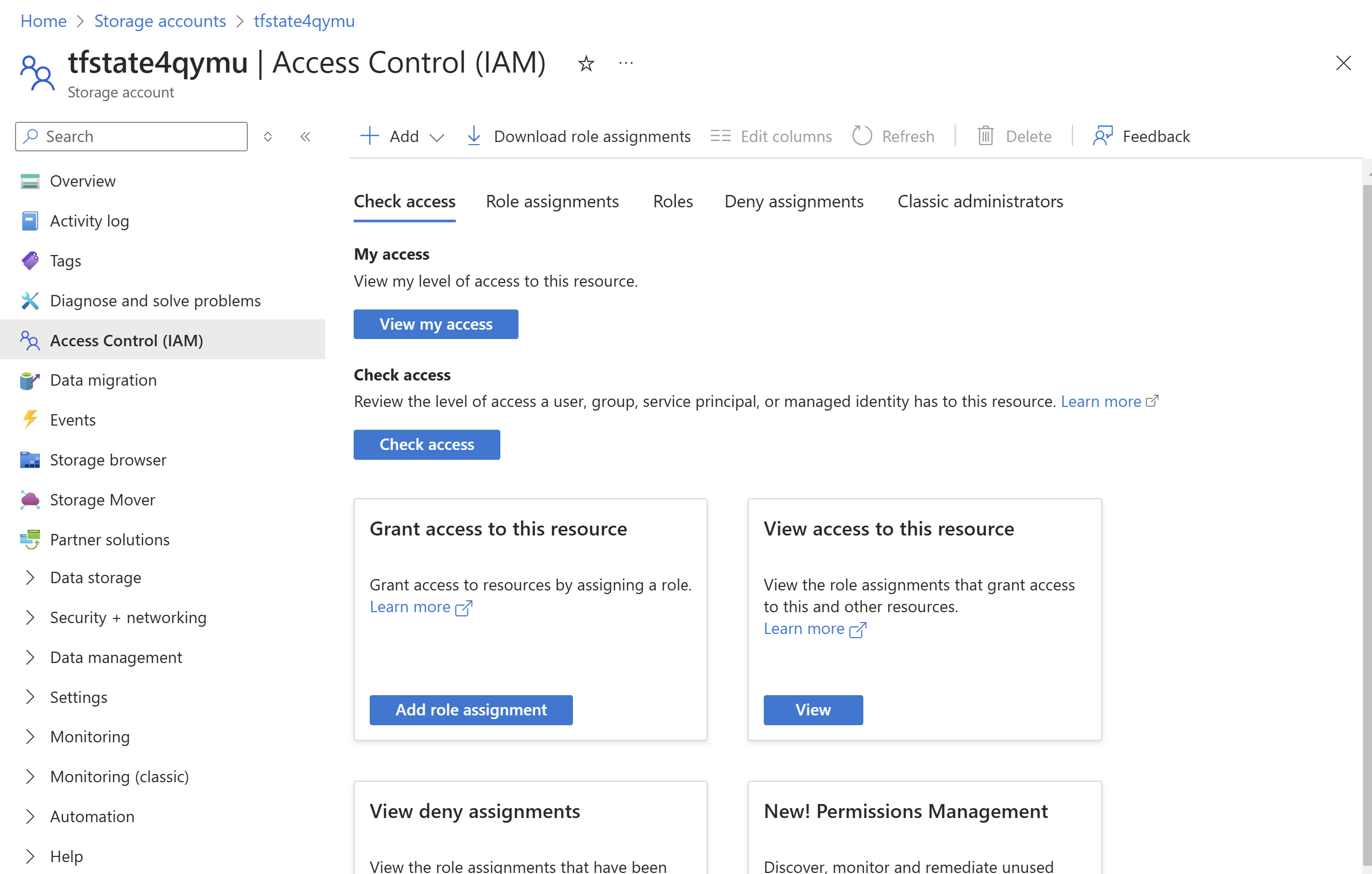
<p>Now we need to assign ourselves and anyone who requires access to the Terraform state in Azure storage the <strong>“Storage Blob Data Contributor”</strong> role.</p>

<p>To do this, go to <strong>portal.azure.com</strong> → <strong>Storage accounts</strong> → <strong>tfstate4qymu</strong> → <strong>Access Control (IAM</strong>) → <strong>Add</strong> → <strong>Add role assignment</strong> → Assign <strong>“Storage Blob Data Contributor”</strong> to your user.</p>

<p><img src="https://www.cyberpunk.tools/assets/azure-storage/1.png" alt="Diagram" /></p>

<h2 id="saving-state-to-azure-storage">Saving State to Azure Storage</h2>

<p>At this point, you’re done! You can go ahead and store state for other projects in Azure, so feel free to skip this section and head straight to the last one—<strong>“Saving State for Other Resources”</strong>.</p>

<p>But if you’re feeling a bit playful, you can try saving the state for this project itself in Azure Storage, kind of like a snake eating its own tail.</p>

<p>So, here’s the final code for this case:</p>

<figure class="highlight"><pre><code class="language-bash" data-lang="bash">terraform <span class="o">{</span>
  required_providers <span class="o">{</span>
    azurerm <span class="o">=</span> <span class="o">{</span>
      <span class="nb">source</span>  <span class="o">=</span> <span class="s2">"hashicorp/azurerm"</span>
      version <span class="o">=</span> <span class="s2">"~&gt;3.0"</span>
    <span class="o">}</span>
    random <span class="o">=</span> <span class="o">{</span>
      <span class="nb">source</span>  <span class="o">=</span> <span class="s2">"hashicorp/random"</span>
      version <span class="o">=</span> <span class="s2">"~&gt;3.0"</span>
    <span class="o">}</span>
  <span class="o">}</span>
    backend <span class="s2">"azurerm"</span> <span class="o">{</span>
    resource_group_name  <span class="o">=</span> <span class="s2">"tfstate"</span>
    storage_account_name <span class="o">=</span> <span class="s2">"tfstate4qymu"</span>
    container_name       <span class="o">=</span> <span class="s2">"tfstate"</span>
    key                  <span class="o">=</span> <span class="s2">"azure-storage-terraform-backend.tfstate"</span>
    use_azuread_auth     <span class="o">=</span> <span class="nb">true</span>
  <span class="o">}</span>
<span class="o">}</span>

provider <span class="s2">"azurerm"</span> <span class="o">{</span>
  features <span class="o">{}</span>
  storage_use_azuread <span class="o">=</span> <span class="nb">true</span>
<span class="o">}</span>

resource <span class="s2">"random_string"</span> <span class="s2">"resource_code"</span> <span class="o">{</span>
  length  <span class="o">=</span> 5
  special <span class="o">=</span> <span class="nb">false
  </span>upper   <span class="o">=</span> <span class="nb">false</span>
<span class="o">}</span>

resource <span class="s2">"azurerm_resource_group"</span> <span class="s2">"tfstate"</span> <span class="o">{</span>
  name     <span class="o">=</span> <span class="s2">"tfstate"</span>
  location <span class="o">=</span> <span class="s2">"eastus2"</span>
  tags <span class="o">=</span> <span class="o">{</span>
    ManagedBy <span class="o">=</span> <span class="s2">"Terraform"</span>
  <span class="o">}</span>
<span class="o">}</span>

resource <span class="s2">"azurerm_storage_account"</span> <span class="s2">"tfstate"</span> <span class="o">{</span>
  name                            <span class="o">=</span> <span class="s2">"tfstate</span><span class="k">${</span><span class="nv">random_string</span><span class="p">.resource_code.result</span><span class="k">}</span><span class="s2">"</span>
  resource_group_name             <span class="o">=</span> azurerm_resource_group.tfstate.name
  location                        <span class="o">=</span> azurerm_resource_group.tfstate.location
  account_tier                    <span class="o">=</span> <span class="s2">"Standard"</span>
  account_kind                    <span class="o">=</span> <span class="s2">"StorageV2"</span>
  account_replication_type        <span class="o">=</span> <span class="s2">"GRS"</span>
  min_tls_version                 <span class="o">=</span> <span class="s2">"TLS1_2"</span>
  shared_access_key_enabled       <span class="o">=</span> <span class="nb">false
  </span>default_to_oauth_authentication <span class="o">=</span> <span class="nb">true
  </span>allow_nested_items_to_be_public <span class="o">=</span> <span class="nb">false

  </span>blob_properties <span class="o">{</span>
    versioning_enabled            <span class="o">=</span> <span class="nb">true
    </span>change_feed_enabled           <span class="o">=</span> <span class="nb">true
    </span>change_feed_retention_in_days <span class="o">=</span> 90
    last_access_time_enabled      <span class="o">=</span> <span class="nb">true

    </span>delete_retention_policy <span class="o">{</span>
      days <span class="o">=</span> 30
    <span class="o">}</span>

    container_delete_retention_policy <span class="o">{</span>
      days <span class="o">=</span> 30
    <span class="o">}</span>

  <span class="o">}</span>

  tags <span class="o">=</span> <span class="o">{</span>
    ManagedBy <span class="o">=</span> <span class="s2">"Terraform"</span>
  <span class="o">}</span>
<span class="o">}</span>

resource <span class="s2">"azurerm_storage_container"</span> <span class="s2">"tfstate"</span> <span class="o">{</span>
  name                  <span class="o">=</span> <span class="s2">"tfstate"</span>
  storage_account_name  <span class="o">=</span> azurerm_storage_account.tfstate.name
  container_access_type <span class="o">=</span> <span class="s2">"private"</span>
<span class="o">}</span>

output <span class="s2">"storage_account_name"</span> <span class="o">{</span>
  value <span class="o">=</span> azurerm_storage_account.tfstate.name
<span class="o">}</span>

output <span class="s2">"storage_container_name"</span> <span class="o">{</span>
  value <span class="o">=</span> azurerm_storage_container.tfstate.name
<span class="o">}</span></code></pre></figure>

<p>Now, let’s run:</p>

<figure class="highlight"><pre><code class="language-bash" data-lang="bash">tofu init <span class="nt">-migrate-state</span></code></pre></figure>

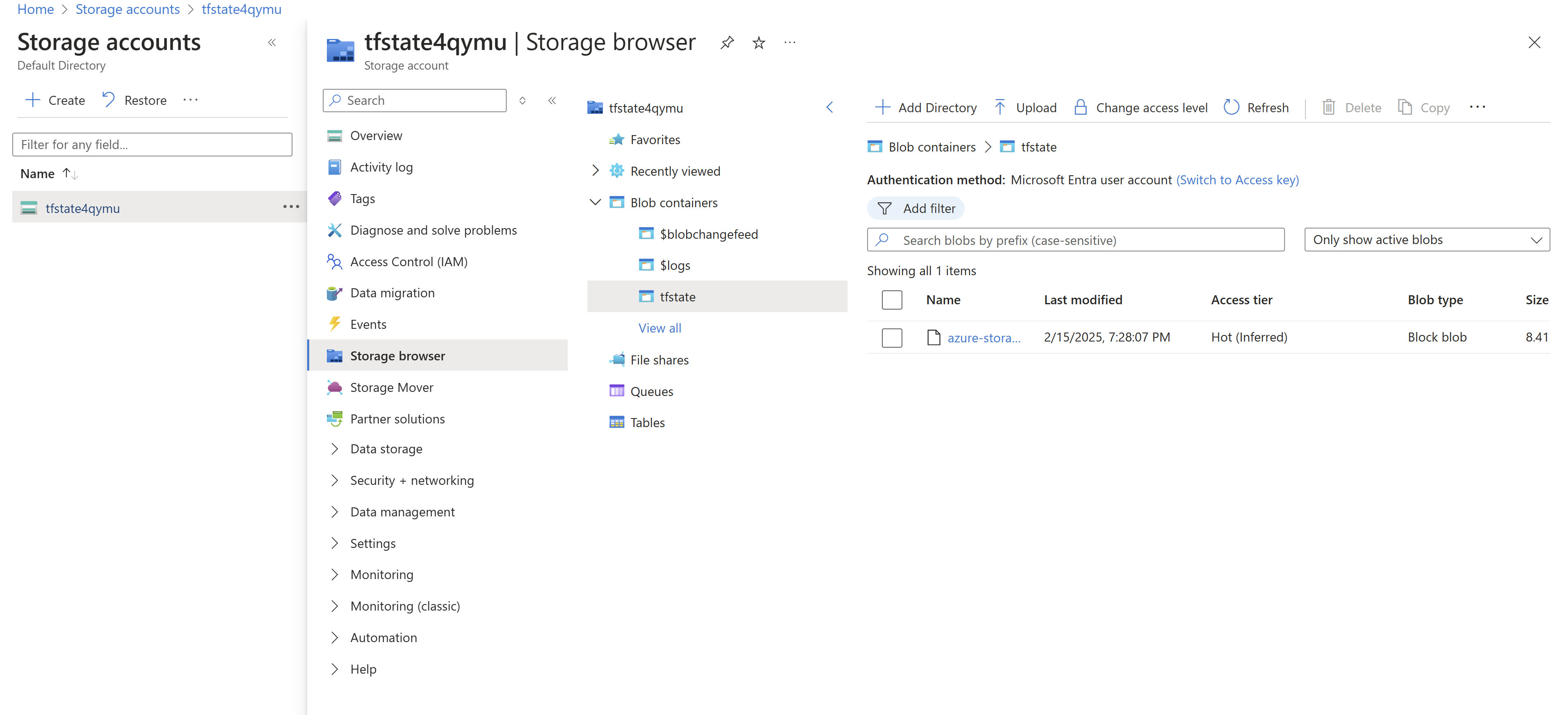
<p>This will migrate the state of the storage account and container to the blob storage.</p>

<p>Confirm with yes, and once the process is complete, your Terraform state configuration will be securely stored in the tfstate container under the key azure-storage-terraform-backend.tfstate.</p>

<p><img src="https://www.cyberpunk.tools/assets/azure-storage/2.png" alt="Diagram" /></p>

<h2 id="saving-state-for-other-resources">Saving State for Other Resources</h2>

<p>Whenever you need to add a new resource in Azure, simply include the backend configuration as shown below, ensuring that each project has a unique key. Also, make sure to use the correct <code class="language-plaintext highlighter-rouge">storage_account_name</code>, as it will be different from the one in our example:</p>

<figure class="highlight"><pre><code class="language-bash" data-lang="bash">backend <span class="s2">"azurerm"</span> <span class="o">{</span>
  resource_group_name  <span class="o">=</span> <span class="s2">"tfstate"</span>
  storage_account_name <span class="o">=</span> <span class="s2">"tfstate4qymu"</span>
  container_name       <span class="o">=</span> <span class="s2">"tfstate"</span>
  key                  <span class="o">=</span> <span class="s2">"&lt;TO CHANGE&gt;.tfstate"</span>
  use_azuread_auth     <span class="o">=</span> <span class="nb">true</span>
<span class="o">}</span></code></pre></figure>

<p>And that’s it! This is all you need. Simple, right?</p>]]></content><author><name>Jurijs Ivolga</name><email>jurijs.ivolga@gmail.com</email></author><category term="jekyll" /><category term="update" /><summary type="html"><![CDATA[Thank You “Ned in the Cloud”]]></summary><media:thumbnail xmlns:media="http://search.yahoo.com/mrss/" url="https://www.cyberpunk.tools/assets/azure-storage/3.png" /><media:content medium="image" url="https://www.cyberpunk.tools/assets/azure-storage/3.png" xmlns:media="http://search.yahoo.com/mrss/" /></entry><entry><title type="html">How to Substitute SSH with AWS Session Manager</title><link href="https://www.cyberpunk.tools/jekyll/update/2025/01/07/aws-systems-manager-session-manager.html" rel="alternate" type="text/html" title="How to Substitute SSH with AWS Session Manager" /><published>2025-01-07T16:35:00+00:00</published><updated>2025-01-07T16:35:00+00:00</updated><id>https://www.cyberpunk.tools/jekyll/update/2025/01/07/aws-systems-manager-session-manager</id><content type="html" xml:base="https://www.cyberpunk.tools/jekyll/update/2025/01/07/aws-systems-manager-session-manager.html"><![CDATA[<p>In this article, I will explore AWS Systems Manager Session Manager and how anyone can use it as an alternative to SSH.</p>

<h2 id="why-replace-ssh">Why Replace SSH?</h2>
<p>So why would we want to move away from SSH, a protocol that has worked very well for decades? In my environment, as the number of EC2 instances grew, I found that I sometimes needed to give access to parts of my infrastructure. This wasn’t just about accessing an EC2 instance but often included access to the AWS account as well. In such cases, we not only need to manage AWS accounts but also access to EC2 instances—creating users, generating SSH keys, and so on. When someone leaves, we have to remove access to both the AWS account and the EC2 instances, deleting keys and users accordingly.</p>

<h2 id="the-idea-behind-session-manager">The Idea Behind Session Manager</h2>
<p>Imagine we have a tool that combines both SSH and AWS access. All we need to do is create an AWS user with working keys or tokens, and as long as the user has the necessary credentials, they can log in to EC2 instances. When we want to remove their access, we simply remove their access to the AWS console. This was the main reason I wanted to try out Session Manager.</p>

<h2 id="alternatives-to-session-manager">Alternatives to Session Manager</h2>
<p>To be fair, there are several alternatives to SSM, such as EC2 Instance Connect, but we will focus on Session Manager for now.</p>

<h2 id="setup-plan">Setup Plan</h2>
<p>My initial goal was to follow the steps described here:</p>

<p><a href="https://docs.aws.amazon.com/prescriptive-guidance/latest/patterns/connect-to-an-amazon-ec2-instance-by-using-session-manager.html">Session Manager Setup Guide</a></p>

<p>I opted for a paranoid configuration that includes using KMS, generating separate keys for encrypting S3 buckets, and an additional layer of encryption for session data. However, there were a few challenges with this setup.</p>

<h2 id="challenges-of-a-paranoid-setup">Challenges of a Paranoid Setup</h2>
<p>Session Manager is region-based, meaning we need to configure it separately for each region. This includes setting up region-specific KMS keys (which cannot be reused across regions), creating separate S3 buckets for each region (since you can’t use multiple keys for encrypting the same bucket), and making sure CloudWatch log groups are in the same region.</p>

<p>Long story short, while it’s good to be paranoid, the overhead was significant, so I opted for a more pragmatic approach.</p>

<h2 id="pragmatic-approach">Pragmatic Approach</h2>
<p>In my setup, I removed KMS and CloudWatch, and I’m using one bucket for all regions. Logs are still written to S3 buckets, and they are encrypted with AWS-managed keys.</p>

<h2 id="code-template">Code Template</h2>
<p>I used the following resource as a template for my code:</p>

<p><a href="https://github.com/aws-samples/enable-session-manager-terraform">Terraform SSM Example</a></p>

<p>It’s a good starting point, but unfortunately, it had too many issues and bugs, so I don’t think it’s production-ready in its current state.</p>

<h2 id="ec2-instance-requirements">EC2 Instance Requirements</h2>
<p>EC2 instances no longer require SSH access! You can remove port 22 from your security groups. Additionally, there’s no need to add any key to your EC2 instance. All that’s required is for your EC2 instance to have the AWS Systems Manager (SSM) Agent installed. This software is typically included in most popular AMIs, such as Ubuntu.</p>

<p>Also, the EC2 instance needs internet access. If the instance is in a private VPC, review this part of the code and apply the appropriate security group rules to your VPC:
<a href="https://github.com/aws-samples/enable-session-manager-terraform/blob/main/session-manager-module/ec2.tf">EC2 SG Configuration</a></p>

<h2 id="creating-the-iam-role-and-resources">Creating the IAM Role and Resources</h2>
<p>At the end of the day, I wrote a module that configures the IAM role, which needs to be attached to the instance and S3 bucket, along with other necessary resources. Using my module, you will still need to create the <code class="language-plaintext highlighter-rouge">aws_ssm_document</code> document as described below. Here’s a link to the module I wrote on GitHub:
<a href="https://github.com/os11k/terraform-session-manager">Terraform Session Manager Module</a></p>

<h2 id="example-terraform-configuration">Example Terraform Configuration</h2>
<p>Here’s my <code class="language-plaintext highlighter-rouge">main.tf</code> to deploy Session Manager. I assume the module code is located in <code class="language-plaintext highlighter-rouge">../modules/ssm</code>:</p>

<figure class="highlight"><pre><code class="language-bash" data-lang="bash">terraform <span class="o">{</span>
  required_providers <span class="o">{</span>
    aws <span class="o">=</span> <span class="o">{</span>
      <span class="nb">source</span>  <span class="o">=</span> <span class="s2">"hashicorp/aws"</span>
      version <span class="o">=</span> <span class="s2">"~&gt; 5"</span>
    <span class="o">}</span>
  <span class="o">}</span>
<span class="o">}</span>

provider <span class="s2">"aws"</span> <span class="o">{</span>
  region  <span class="o">=</span> <span class="s2">"us-east-1"</span>
  profile <span class="o">=</span> <span class="s2">"my-profile-name"</span>
<span class="o">}</span>

module <span class="s2">"ssm"</span> <span class="o">{</span>
  <span class="nb">source</span> <span class="o">=</span> <span class="s2">"../modules/ssm"</span>
<span class="o">}</span>

output <span class="s2">"ssm_profile_name"</span> <span class="o">{</span>
  value <span class="o">=</span> module.ssm.ssm-profile-name
<span class="o">}</span>

provider <span class="s2">"aws"</span> <span class="o">{</span>
  region  <span class="o">=</span> <span class="s2">"us-east-1"</span>
  profile <span class="o">=</span> <span class="s2">"my-profile-name"</span>
  <span class="nb">alias</span>   <span class="o">=</span> <span class="s2">"useast1"</span>
<span class="o">}</span>

resource <span class="s2">"aws_ssm_document"</span> <span class="s2">"session_manager_prefs_useast1"</span> <span class="o">{</span>
  provider <span class="o">=</span> aws.useast1

  name            <span class="o">=</span> <span class="s2">"SSM-SessionManagerRunShell"</span>
  document_type   <span class="o">=</span> <span class="s2">"Session"</span>
  document_format <span class="o">=</span> <span class="s2">"JSON"</span>

  content <span class="o">=</span> <span class="o">&lt;&lt;</span><span class="no">DOC</span><span class="sh">
{
    "schemaVersion": "1.0",
    "description": "SSM document to house preferences for session manager",
    "sessionType": "Standard_Stream",
    "inputs": {
        "s3BucketName": "</span><span class="k">${</span><span class="nv">module</span><span class="p">.ssm.ssm_s3_bucket_id</span><span class="k">}</span><span class="sh">",
        "s3KeyPrefix": "AWSLogs/ssm_session_logs",
        "s3EncryptionEnabled": true,
        "cloudWatchLogGroupName": "",
        "runAsEnabled": true,
        "runAsDefaultUser": "</span><span class="k">${</span><span class="nv">var</span><span class="p">.user</span><span class="k">}</span><span class="sh">",
        "shellProfile": {
          "windows": "",
          "linux": "exec /bin/bash</span><span class="se">\n</span><span class="sh">cd /home/</span><span class="k">${</span><span class="nv">var</span><span class="p">.user</span><span class="k">}</span><span class="sh">"
        },
        "idleSessionTimeout": "20"
    }
}
</span><span class="no">DOC
</span><span class="o">}</span></code></pre></figure>

<h2 id="initial-setup-for-us-east-1">Initial Setup for <code class="language-plaintext highlighter-rouge">us-east-1</code></h2>
<p>First, we call the module in <code class="language-plaintext highlighter-rouge">us-east-1</code> to create the IAM role, bucket, and other necessary resources using this code:</p>

<figure class="highlight"><pre><code class="language-bash" data-lang="bash">terraform <span class="o">{</span>
  required_providers <span class="o">{</span>
    aws <span class="o">=</span> <span class="o">{</span>
      <span class="nb">source</span>  <span class="o">=</span> <span class="s2">"hashicorp/aws"</span>
      version <span class="o">=</span> <span class="s2">"~&gt; 5"</span>
    <span class="o">}</span>
  <span class="o">}</span>
<span class="o">}</span>

provider <span class="s2">"aws"</span> <span class="o">{</span>
  region  <span class="o">=</span> <span class="s2">"us-east-1"</span>
  profile <span class="o">=</span> <span class="s2">"my-profile-name"</span>
<span class="o">}</span>

module <span class="s2">"ssm"</span> <span class="o">{</span>
  <span class="nb">source</span> <span class="o">=</span> <span class="s2">"../modules/ssm"</span>
<span class="o">}</span></code></pre></figure>

<p>This part of the code will output the IAM role name that should be attached to your instances:</p>

<figure class="highlight"><pre><code class="language-bash" data-lang="bash">output <span class="s2">"ssm_profile_name"</span> <span class="o">{</span>
  value <span class="o">=</span> module.ssm.ssm-profile-name
<span class="o">}</span></code></pre></figure>

<h2 id="region-specific-configuration">Region-Specific Configuration</h2>
<p>The last part needs to be copied and pasted for each region where you plan to use Session Manager. Remember, Session Manager config is region-specific.</p>

<h3 id="creating-providers-for-each-region">Creating Providers for Each Region</h3>
<p>First, create a provider. Each region should have a separate provider like this:</p>

<figure class="highlight"><pre><code class="language-bash" data-lang="bash">provider <span class="s2">"aws"</span> <span class="o">{</span>
  region  <span class="o">=</span> <span class="s2">"us-east-1"</span>
  profile <span class="o">=</span> <span class="s2">"my-profile-name"</span>
  <span class="nb">alias</span>   <span class="o">=</span> <span class="s2">"useast1"</span>
<span class="o">}</span></code></pre></figure>

<h3 id="configuring-session-manager-for-us-east-1">Configuring Session Manager for <code class="language-plaintext highlighter-rouge">us-east-1</code></h3>
<p>Then, configure Session Manager in that region, ensuring the provider is set accordingly (in our code, it’s <code class="language-plaintext highlighter-rouge">aws.useast1</code>):</p>

<figure class="highlight"><pre><code class="language-bash" data-lang="bash">resource <span class="s2">"aws_ssm_document"</span> <span class="s2">"session_manager_prefs_useast1"</span> <span class="o">{</span>
  provider <span class="o">=</span> aws.useast1

  name            <span class="o">=</span> <span class="s2">"SSM-SessionManagerRunShell"</span>
  document_type   <span class="o">=</span> <span class="s2">"Session"</span>
  document_format <span class="o">=</span> <span class="s2">"JSON"</span>

  content <span class="o">=</span> <span class="o">&lt;&lt;</span><span class="no">DOC</span><span class="sh">
{
    "schemaVersion": "1.0",
    "description": "SSM document to house preferences for session manager",
    "sessionType": "Standard_Stream",
    "inputs": {
        "s3BucketName": "</span><span class="k">${</span><span class="nv">module</span><span class="p">.ssm.ssm_s3_bucket_id</span><span class="k">}</span><span class="sh">",
        "s3KeyPrefix": "AWSLogs/ssm_session_logs",
        "s3EncryptionEnabled": true,
        "cloudWatchLogGroupName": "",
        "runAsEnabled": true,
        "runAsDefaultUser": "</span><span class="k">${</span><span class="nv">var</span><span class="p">.user</span><span class="k">}</span><span class="sh">",
        "shellProfile": {
          "windows": "",
          "linux": "exec /bin/bash</span><span class="se">\n</span><span class="sh">cd /home/</span><span class="k">${</span><span class="nv">var</span><span class="p">.user</span><span class="k">}</span><span class="sh">"
        },
        "idleSessionTimeout": "20"
    }
}
</span><span class="no">DOC
</span><span class="o">}</span></code></pre></figure>

<h3 id="adding-configuration-for-us-east-2">Adding Configuration for <code class="language-plaintext highlighter-rouge">us-east-2</code></h3>
<p>Now, let’s assume you want to configure Session Manager in <code class="language-plaintext highlighter-rouge">us-east-2</code>. You only need to add this snippet at the bottom:</p>

<figure class="highlight"><pre><code class="language-bash" data-lang="bash">provider <span class="s2">"aws"</span> <span class="o">{</span>
  region  <span class="o">=</span> <span class="s2">"us-east-2"</span>
  profile <span class="o">=</span> <span class="s2">"my-profile-name"</span>
  <span class="nb">alias</span>   <span class="o">=</span> <span class="s2">"useast2"</span>
<span class="o">}</span>

resource <span class="s2">"aws_ssm_document"</span> <span class="s2">"session_manager_prefs_useast1"</span> <span class="o">{</span>
  provider <span class="o">=</span> aws.useast2

  name            <span class="o">=</span> <span class="s2">"SSM-SessionManagerRunShell"</span>
  document_type   <span class="o">=</span> <span class="s2">"Session"</span>
  document_format <span class="o">=</span> <span class="s2">"JSON"</span>

  content <span class="o">=</span> <span class="o">&lt;&lt;</span><span class="no">DOC</span><span class="sh">
{
    "schemaVersion": "1.0",
    "description": "SSM document to house preferences for session manager",
    "sessionType": "Standard_Stream",
    "inputs": {
        "s3BucketName": "</span><span class="k">${</span><span class="nv">module</span><span class="p">.ssm.ssm_s3_bucket_id</span><span class="k">}</span><span class="sh">",
        "s3KeyPrefix": "AWSLogs/ssm_session_logs",
        "s3EncryptionEnabled": true,
        "cloudWatchLogGroupName": "",
        "runAsEnabled": true,
        "runAsDefaultUser": "</span><span class="k">${</span><span class="nv">var</span><span class="p">.user</span><span class="k">}</span><span class="sh">",
        "shellProfile": {
          "windows": "",
          "linux": "exec /bin/bash</span><span class="se">\n</span><span class="sh">cd /home/</span><span class="k">${</span><span class="nv">var</span><span class="p">.user</span><span class="k">}</span><span class="sh">"
        },
        "idleSessionTimeout": "20"
    }
}
</span><span class="no">DOC
</span><span class="o">}</span></code></pre></figure>

<h3 id="documentation-for-the-schema-elements-of-a-session-document">Documentation for the Schema Elements of a Session Document</h3>
<p>You can find more information about the input parameters and options available for aws_ssm_document in the official AWS documentation:
<a href="https://docs.aws.amazon.com/systems-manager/latest/userguide/session-manager-schema.html">AWS Systems Manager - Session document schema</a></p>

<h2 id="conclusion">Conclusion</h2>
<p>As you can see, we need to create an Aliased Provider Block, then add a new configuration for Session Manager, referencing the newly created alias.</p>

<p>As an improvement, I could put the Session Manager configuration in a separate module, but in my environment, I don’t think it’s worth the extra complexity, as I don’t have many regions with infrastructure.</p>]]></content><author><name>Jurijs Ivolga</name><email>jurijs.ivolga@gmail.com</email></author><category term="jekyll" /><category term="update" /><summary type="html"><![CDATA[In this article, I will explore AWS Systems Manager Session Manager and how anyone can use it as an alternative to SSH.]]></summary><media:thumbnail xmlns:media="http://search.yahoo.com/mrss/" url="https://www.cyberpunk.tools/assets/ssm.png" /><media:content medium="image" url="https://www.cyberpunk.tools/assets/ssm.png" xmlns:media="http://search.yahoo.com/mrss/" /></entry><entry><title type="html">Jekyll Blog with Terraform (OpenTofu) Using GitLab Pipelines</title><link href="https://www.cyberpunk.tools/jekyll/update/2024/12/19/jekyll-terraform-gitlab-pipeline.html" rel="alternate" type="text/html" title="Jekyll Blog with Terraform (OpenTofu) Using GitLab Pipelines" /><published>2024-12-19T16:30:00+00:00</published><updated>2024-12-19T16:30:00+00:00</updated><id>https://www.cyberpunk.tools/jekyll/update/2024/12/19/%20jekyll-terraform-gitlab-pipeline</id><content type="html" xml:base="https://www.cyberpunk.tools/jekyll/update/2024/12/19/jekyll-terraform-gitlab-pipeline.html"><![CDATA[<p>In this guide, I will provide a short manual for deploying a static blog, in this case Jekyll (with minor changes, you should be able to make it work for any other static website), to Amazon S3 using GitLab pipelines. All infrastructure will be managed in Terraform (or OpenTofu, as in our case).</p>

<p>This manual assumes that you are using Route 53 as your DNS provider, and all AWS infrastructure will be deployed to the US East (N. Virginia) region. If you want to use a different region, set the <code class="language-plaintext highlighter-rouge">aws_region</code> variable accordingly in <code class="language-plaintext highlighter-rouge">blog.tfvars</code>.</p>

<h2 id="step-1-credential-setup-and-creating-the-s3-bucket">Step 1: Credential Setup and Creating the S3 Bucket</h2>

<p>First, we need to set up AWS credentials and ensure that AWS CLI and Terraform (or OpenTofu) are already installed.</p>

<p>I used this manual to install OpenTofu:</p>

<p><a href="https://opentofu.org/docs/intro/install/deb/">Installing OpenTofu on .deb-based Linux</a></p>

<p>Here is the installation code:</p>

<figure class="highlight"><pre><code class="language-bash" data-lang="bash"><span class="c"># Download the installer script:</span>
curl <span class="nt">--proto</span> <span class="s1">'=https'</span> <span class="nt">--tlsv1</span>.2 <span class="nt">-fsSL</span> https://get.opentofu.org/install-opentofu.sh <span class="nt">-o</span> install-opentofu.sh
<span class="c"># Alternatively: wget --secure-protocol=TLSv1_2 --https-only https://get.opentofu.org/install-opentofu.sh -O install-opentofu.sh</span>

<span class="c"># Give it execution permissions:</span>
<span class="nb">chmod</span> +x install-opentofu.sh

<span class="c"># Please inspect the downloaded script</span>

<span class="c"># Run the installer:</span>
./install-opentofu.sh <span class="nt">--install-method</span> deb

<span class="c"># Remove the installer:</span>
<span class="nb">rm</span> <span class="nt">-f</span> install-opentofu.sh</code></pre></figure>

<p>To install Terraform, use this guide:</p>

<p><a href="https://developer.hashicorp.com/terraform/tutorials/aws-get-started/install-cli">Install Terraform</a></p>

<figure class="highlight"><pre><code class="language-bash" data-lang="bash"><span class="nb">sudo </span>apt-get update <span class="o">&amp;&amp;</span> <span class="nb">sudo </span>apt-get <span class="nb">install</span> <span class="nt">-y</span> gnupg software-properties-common
wget <span class="nt">-O-</span> https://apt.releases.hashicorp.com/gpg | gpg <span class="nt">--dearmor</span> | <span class="nb">sudo tee</span> /usr/share/keyrings/hashicorp-archive-keyring.gpg <span class="o">&gt;</span> /dev/null
<span class="nb">echo</span> <span class="s2">"deb [signed-by=/usr/share/keyrings/hashicorp-archive-keyring.gpg] https://apt.releases.hashicorp.com </span><span class="si">$(</span>lsb_release <span class="nt">-cs</span><span class="si">)</span><span class="s2"> main"</span> | <span class="nb">sudo tee</span> /etc/apt/sources.list.d/hashicorp.list
<span class="nb">sudo </span>apt update
<span class="nb">sudo </span>apt-get <span class="nb">install </span>terraform</code></pre></figure>

<p>To install AWS CLI, follow the instructions here:</p>

<p><a href="https://docs.aws.amazon.com/cli/latest/userguide/getting-started-install.html">Installing or updating to the latest version of the AWS CLI</a></p>

<figure class="highlight"><pre><code class="language-bash" data-lang="bash">apt <span class="nb">install </span>unzip
curl <span class="s2">"https://awscli.amazonaws.com/awscli-exe-linux-x86_64.zip"</span> <span class="nt">-o</span> <span class="s2">"awscliv2.zip"</span>
unzip awscliv2.zip
<span class="nb">sudo</span> ./aws/install</code></pre></figure>

<p>Once the installation is complete, set up your AWS credentials using the profile <code class="language-plaintext highlighter-rouge">prod</code> (you can choose any profile name, but <code class="language-plaintext highlighter-rouge">prod</code> is used for this manual):</p>

<figure class="highlight"><pre><code class="language-bash" data-lang="bash">aws configure <span class="nt">--profile</span> prod</code></pre></figure>

<p>After setting up your credentials, verify them by running <code class="language-plaintext highlighter-rouge">cat ~/.aws/credentials</code> — it should return something like:</p>

<figure class="highlight"><pre><code class="language-bash" data-lang="bash"><span class="o">[</span>prod]
<span class="nv">aws_access_key_id</span><span class="o">=</span>AXXXXXXXXX
<span class="nv">aws_secret_access_key</span><span class="o">=</span>xxxxxxxxxxxxxxxxxxx</code></pre></figure>

<p>Test the credentials with the following command to ensure they work:</p>

<figure class="highlight"><pre><code class="language-bash" data-lang="bash">aws sts get-caller-identity <span class="nt">--profile</span> prod</code></pre></figure>

<p>You should see output similar to:</p>

<figure class="highlight"><pre><code class="language-bash" data-lang="bash"><span class="o">{</span>
    <span class="s2">"UserId"</span>: <span class="s2">"AXXXXXXXXX"</span>,
    <span class="s2">"Account"</span>: <span class="s2">"8XXXXXXXXX"</span>,
    <span class="s2">"Arn"</span>: <span class="s2">"arn:aws:iam::8XXXXXXXXX:user/jurijsxxxxxxx"</span>
<span class="o">}</span></code></pre></figure>

<p>Now, create the S3 bucket where the Terraform state file will be saved. Keep in mind that this name might already be taken, so use something unique. If you use a different name, make sure to update <code class="language-plaintext highlighter-rouge">main.tf</code> accordingly.:</p>

<figure class="highlight"><pre><code class="language-bash" data-lang="bash">aws s3api create-bucket <span class="nt">--bucket</span> <span class="s2">"myblog-tf-state"</span> <span class="nt">--region</span> <span class="s2">"us-east-1"</span> <span class="nt">--acl</span> private <span class="nt">--profile</span> prod</code></pre></figure>

<p>The output should look something like this:</p>

<figure class="highlight"><pre><code class="language-bash" data-lang="bash"><span class="o">{</span>
    <span class="s2">"Location"</span>: <span class="s2">"/myblog-tf-state"</span>
<span class="o">}</span></code></pre></figure>

<h2 id="step-2-setup-terraform-code">Step 2: Setup Terraform Code</h2>

<p>Most of the Terraform code was taken from the following repository:</p>

<p><a href="https://github.com/pirxthepilot/terraform-aws-static-site">GitHub terraform-aws-static-site</a></p>

<p>The author’s blog post explains in detail what each part of the code does:</p>

<p><a href="https://pirx.io/posts/2022-05-02-automated-static-site-deployment-in-aws-using-terraform/">pirx.io - Automated Static Site Deployment in AWS Using Terraform</a></p>

<p>However, I encountered a few issues with this code. First, it was missing the mandatory <code class="language-plaintext highlighter-rouge">aws_s3_bucket_ownership_controls</code> resource. The solution was to add the <code class="language-plaintext highlighter-rouge">aws_s3_bucket_ownership_controls</code> resource and update the <code class="language-plaintext highlighter-rouge">aws_s3_bucket_acl</code> accordingly. Here is the full code snippet for the relevant part:</p>

<figure class="highlight"><pre><code class="language-bash" data-lang="bash">resource <span class="s2">"aws_s3_bucket"</span> <span class="s2">"static_site"</span> <span class="o">{</span>
  bucket <span class="o">=</span> var.domain
<span class="o">}</span>

resource <span class="s2">"aws_s3_bucket_ownership_controls"</span> <span class="s2">"static_site"</span> <span class="o">{</span>
  bucket <span class="o">=</span> aws_s3_bucket.static_site.id
  rule <span class="o">{</span>
    object_ownership <span class="o">=</span> <span class="s2">"BucketOwnerPreferred"</span>
  <span class="o">}</span>
<span class="o">}</span>

resource <span class="s2">"aws_s3_bucket_acl"</span> <span class="s2">"static_site"</span> <span class="o">{</span>
  depends_on <span class="o">=</span> <span class="o">[</span>aws_s3_bucket_ownership_controls.static_site]

  bucket <span class="o">=</span> aws_s3_bucket.static_site.id
  acl    <span class="o">=</span> <span class="s2">"private"</span>
<span class="o">}</span></code></pre></figure>

<p>Additionally, we need to create an IAM user for deploying the blog via the GitLab pipeline. I copied the relevant code from here:</p>

<p><a href="https://github.com/brianmacdonald/terraform-aws-s3-static-site">GitHub terraform-aws-s3-static-site</a></p>

<figure class="highlight"><pre><code class="language-bash" data-lang="bash">resource <span class="s2">"aws_iam_user"</span> <span class="s2">"deploy"</span> <span class="o">{</span>
  name <span class="o">=</span> <span class="s2">"</span><span class="k">${</span><span class="nv">var</span><span class="p">.domain</span><span class="k">}</span><span class="s2">-deploy"</span>
  path <span class="o">=</span> <span class="s2">"/"</span>
<span class="o">}</span>

resource <span class="s2">"aws_iam_access_key"</span> <span class="s2">"deploy"</span> <span class="o">{</span>
  user <span class="o">=</span> aws_iam_user.deploy.name
<span class="o">}</span>

resource <span class="s2">"aws_iam_user_policy"</span> <span class="s2">"deploy"</span> <span class="o">{</span>
  name   <span class="o">=</span> <span class="s2">"deploy"</span>
  user   <span class="o">=</span> aws_iam_user.deploy.name
  policy <span class="o">=</span> data.aws_iam_policy_document.deploy.json
<span class="o">}</span></code></pre></figure>

<p>Add this code snippet to <code class="language-plaintext highlighter-rouge">outputs.tf</code> to output the credentials needed for the pipeline:</p>

<figure class="highlight"><pre><code class="language-bash" data-lang="bash">output <span class="s2">"AWS_ACCESS_KEY_ID"</span> <span class="o">{</span>
  sensitive   <span class="o">=</span> <span class="nb">true
  </span>description <span class="o">=</span> <span class="s2">"The AWS Access Key ID for the IAM deployment user."</span>
  value       <span class="o">=</span> aws_iam_access_key.deploy.id
<span class="o">}</span>

output <span class="s2">"AWS_SECRET_ACCESS_KEY"</span> <span class="o">{</span>
  sensitive   <span class="o">=</span> <span class="nb">true
  </span>description <span class="o">=</span> <span class="s2">"The AWS Secret Key for the IAM deployment user."</span>
  value       <span class="o">=</span> aws_iam_access_key.deploy.secret
<span class="o">}</span></code></pre></figure>

<p>To make things easier, I’ve consolidated all the code into a single repository:</p>

<p><a href="https://github.com/os11k/jekyll-terraform-aws-s3">GitHub jekyll-terraform-aws-s3</a></p>

<p>I chose to use a monolithic approach instead of modules for simplicity. You just need to set at least the <code class="language-plaintext highlighter-rouge">domain</code> and <code class="language-plaintext highlighter-rouge">route53_zone_id</code> variables in <code class="language-plaintext highlighter-rouge">blog.tfvars</code> and you’re ready to deploy the infrastructure in AWS:</p>

<figure class="highlight"><pre><code class="language-bash" data-lang="bash">tofu init
tofu plan <span class="nt">-var-file</span><span class="o">=</span><span class="s2">"blog.tfvars"</span>
tofu apply <span class="nt">-var-file</span><span class="o">=</span><span class="s2">"blog.tfvars"</span></code></pre></figure>

<p>or using Terraform:</p>

<figure class="highlight"><pre><code class="language-bash" data-lang="bash">terraform init
terraform plan <span class="nt">-var-file</span><span class="o">=</span><span class="s2">"blog.tfvars"</span>
terraform apply <span class="nt">-var-file</span><span class="o">=</span><span class="s2">"blog.tfvars"</span></code></pre></figure>

<p>Once applied, the output will display variables to use later in the pipeline:</p>

<figure class="highlight"><pre><code class="language-bash" data-lang="bash">AWS_ACCESS_KEY_ID <span class="o">=</span> &lt;sensitive&gt;
AWS_SECRET_ACCESS_KEY <span class="o">=</span> &lt;sensitive&gt;
CLOUDFRONT_DISTRIBUTION_ID <span class="o">=</span> <span class="s2">"EXXXXXX"</span>
S3_BUCKET <span class="o">=</span> <span class="s2">"my-site.com"</span></code></pre></figure>

<p>To retrieve sensitive variables, run:</p>

<figure class="highlight"><pre><code class="language-bash" data-lang="bash">tofu output <span class="nt">--json</span></code></pre></figure>

<p>or using Terraform:</p>

<figure class="highlight"><pre><code class="language-bash" data-lang="bash">terraform output <span class="nt">--json</span></code></pre></figure>

<h2 id="step-3-setup-gitlab-pipeline">Step 3: Setup GitLab Pipeline</h2>

<p>The pipeline I use is directly copied from here:</p>

<p><a href="https://blog.schenk.tech/posts/jekyll-blog-in-aws-part2/">SchenkTech Blog - Hosting a Jekyll Site in S3 Part 2</a></p>

<p>Since the author didn’t provide a Git repository for the code, I created one myself:</p>

<p><a href="https://gitlab.com/jurijs.ivolga/deploy-jekyll-to-s3">GitLab deploy-jekyll-to-s3</a></p>

<p>When you fork that repository or copy the files, you will need to set the following variables in GitLab CI/CD settings. Ensure they are masked and protected to safeguard sensitive information:</p>
<ul>
  <li><code class="language-plaintext highlighter-rouge">AWS_ACCESS_KEY_ID</code></li>
  <li><code class="language-plaintext highlighter-rouge">AWS_SECRET_ACCESS_KEY</code></li>
  <li><code class="language-plaintext highlighter-rouge">CLOUDFRONT_DISTRIBUTION_ID</code></li>
  <li><code class="language-plaintext highlighter-rouge">S3_BUCKET</code></li>
</ul>

<p>Next, add your actual Jekyll code to the repository, commit, and push it:</p>

<figure class="highlight"><pre><code class="language-bash" data-lang="bash"><span class="nb">cd</span> ~
git clone https://github.com/daattali/beautiful-jekyll.git
<span class="nb">rm</span> <span class="nt">-Rf</span> ./beautiful-jekyll/.git<span class="k">*</span> ./beautiful-jekyll/README.md
<span class="nb">cp</span> <span class="nt">-a</span> ./beautiful-jekyll/<span class="k">*</span> ./deploy-jekyll-to-s3/  <span class="c"># Assuming your code with the pipeline is in ~/deploy-jekyll-to-s3 directory</span>
<span class="nb">cd</span> ~/deploy-jekyll-to-s3
git add <span class="nb">.</span>
git commit <span class="nt">-m</span> <span class="s2">"added jekyll"</span>
git push</code></pre></figure>

<p>And you’re done! Once the build completes, your website will be deployed, and you should see the Beautiful Jekyll template live.</p>]]></content><author><name>Jurijs Ivolga</name><email>jurijs.ivolga@gmail.com</email></author><category term="jekyll" /><category term="update" /><summary type="html"><![CDATA[In this guide, I will provide a short manual for deploying a static blog, in this case Jekyll (with minor changes, you should be able to make it work for any other static website), to Amazon S3 using GitLab pipelines. All infrastructure will be managed in Terraform (or OpenTofu, as in our case).]]></summary></entry><entry><title type="html">HOMER 7 Packet Manipulation Using Lua</title><link href="https://www.cyberpunk.tools/jekyll/update/2024/11/24/homer7-fix-packets.html" rel="alternate" type="text/html" title="HOMER 7 Packet Manipulation Using Lua" /><published>2024-11-24T16:00:00+00:00</published><updated>2024-11-24T16:00:00+00:00</updated><id>https://www.cyberpunk.tools/jekyll/update/2024/11/24/homer7-fix-packets</id><content type="html" xml:base="https://www.cyberpunk.tools/jekyll/update/2024/11/24/homer7-fix-packets.html"><![CDATA[<p>In this guide, I will show how to manipulate data written in HOMER 7 using Lua scripts. Here is the official documentation:</p>

<p><a href="https://github.com/sipcapture/homer/wiki/HOMER-LUA-Scripting">HOMER 7 Packet Manipulation Using LuaJIT</a></p>

<p>In this example, we’ll modify the “User-Agent” header in the <code class="language-plaintext highlighter-rouge">CANCEL</code> SIP method to “cisco”.</p>

<p>This tutorial assumes you already have HOMER 7 up and running, and that your PBX is sending data to it. We are also assuming HOMER 7 is running in Docker.</p>

<h2 id="step-1-create-the-lua-directory">Step 1: Create the lua Directory</h2>

<p>First, create a <code class="language-plaintext highlighter-rouge">./lua</code> directory in the folder where your <code class="language-plaintext highlighter-rouge">docker-compose.yml</code> file is located. Then, add this directory as a bind mount for the <code class="language-plaintext highlighter-rouge">heplify-server</code> container by adding the following code to the relevant section:</p>

<figure class="highlight"><pre><code class="language-bash" data-lang="bash">volumes:
  - ./lua:/lua</code></pre></figure>

<p>Additionally, set the following environment variables in your <code class="language-plaintext highlighter-rouge">docker-compose.yml</code>:</p>

<figure class="highlight"><pre><code class="language-bash" data-lang="bash">    - <span class="s2">"HEPLIFYSERVER_SCRIPTENABLE=true"</span>
    - <span class="s2">"HEPLIFYSERVER_SCRIPTFOLDER=/lua/"</span></code></pre></figure>

<p>For reference, here is the updated configuration for <code class="language-plaintext highlighter-rouge">heplify-server</code> in <code class="language-plaintext highlighter-rouge">docker-compose.yml</code>:</p>

<figure class="highlight"><pre><code class="language-bash" data-lang="bash">heplify-server:
  image: sipcapture/heplify-server
  container_name: heplify-server
  ports:
    - <span class="s2">"9060:9060"</span>
    - <span class="s2">"9060:9060/udp"</span>
    - <span class="s2">"9061:9061/tcp"</span>
  <span class="nb">command</span>:
    - <span class="s1">'./heplify-server'</span>
  environment:
    - <span class="s2">"HEPLIFYSERVER_HEPADDR=0.0.0.0:9060"</span>
    - <span class="s2">"HEPLIFYSERVER_HEPTCPADDR=0.0.0.0:9061"</span>
    - <span class="s2">"HEPLIFYSERVER_DBSHEMA=homer7"</span>
    - <span class="s2">"HEPLIFYSERVER_DBDRIVER=postgres"</span>
    - <span class="s2">"HEPLIFYSERVER_DBADDR=db:5432"</span>
    - <span class="s2">"HEPLIFYSERVER_DBUSER=root"</span>
    - <span class="s2">"HEPLIFYSERVER_DBPASS=homerSeven"</span>
    - <span class="s2">"HEPLIFYSERVER_DBDATATABLE=homer_data"</span>
    - <span class="s2">"HEPLIFYSERVER_DBCONFTABLE=homer_config"</span>
    - <span class="s2">"HEPLIFYSERVER_DBROTATE=true"</span>
    - <span class="s2">"HEPLIFYSERVER_DBDROPDAYS=5"</span>
    - <span class="s2">"HEPLIFYSERVER_LOGLVL=info"</span>
    - <span class="s2">"HEPLIFYSERVER_LOGSTD=true"</span>
    - <span class="s2">"HEPLIFYSERVER_PROMADDR=0.0.0.0:9096"</span>
    - <span class="s2">"HEPLIFYSERVER_DEDUP=false"</span>
    - <span class="s2">"HEPLIFYSERVER_LOKIURL=http://loki:3100/api/prom/push"</span>
    - <span class="s2">"HEPLIFYSERVER_LOKITIMER=2"</span>
    - <span class="s2">"HEPLIFYSERVER_SCRIPTENABLE=true"</span>
    - <span class="s2">"HEPLIFYSERVER_SCRIPTFOLDER=/lua/"</span>
  restart: unless-stopped
  depends_on:
    - loki
    - db
  expose:
    - 9090
    - 9096
  volumes:
    - ./lua:/lua
  labels:
    org.label-schema.group: <span class="s2">"monitoring"</span>
  logging:
    options:
      max-size: <span class="s2">"50m"</span></code></pre></figure>

<h2 id="step-2-create-lua-code">Step 2: Create Lua Code</h2>

<p>Now, create a file named <code class="language-plaintext highlighter-rouge">my.lua</code> in the newly created <code class="language-plaintext highlighter-rouge">./lua</code> folder. Use the following code:</p>

<figure class="highlight"><pre><code class="language-bash" data-lang="bash"><span class="nt">--</span> This Lua code modifies the <span class="s2">"User-Agent"</span> header to <span class="s2">"cisco"</span> <span class="k">in </span>CANCEL methods. 
<span class="nt">--</span> If there are multiple <span class="s2">"User-Agent"</span> headers, it will update all of them.

<span class="nt">--</span> This <span class="k">function </span>will be executed first
<span class="k">function </span>checkRAW<span class="o">()</span>

    <span class="nb">local </span>protoType <span class="o">=</span> GetHEPProtoType<span class="o">()</span>

    <span class="nt">--</span> Check <span class="k">if </span>the packet is of SIP <span class="nb">type
    </span><span class="k">if </span>protoType ~<span class="o">=</span> 1 <span class="k">then
        return
    </span>end

    <span class="nt">--</span> Get the original SIP message payload
    <span class="nb">local </span>raw <span class="o">=</span> GetRawMessage<span class="o">()</span>

    <span class="nt">--</span> Extract the method name from the first few characters
    <span class="nb">local </span>method <span class="o">=</span> string.sub<span class="o">(</span>raw, 1, 6<span class="o">)</span>

    <span class="k">if </span>method <span class="o">==</span> <span class="s2">"CANCEL"</span> <span class="k">then</span>
        <span class="nt">--</span> Replace <span class="s2">"User-Agent"</span> header with <span class="s2">"cisco"</span>
        <span class="nb">local </span>ripe, count <span class="o">=</span> string.gsub<span class="o">(</span>raw, <span class="s2">"(User%-Agent:)(.-)(</span><span class="se">\n</span><span class="s2">+)"</span>, <span class="s2">"%1 cisco%3"</span><span class="o">)</span>

        <span class="k">if </span>count <span class="o">&gt;</span> 0 <span class="k">then
            </span>Logp<span class="o">(</span><span class="s2">"ERROR"</span>, <span class="s2">"ripe"</span>, ripe<span class="o">)</span>
            SetRawMessage<span class="o">(</span>ripe<span class="o">)</span>
        end
    end

    <span class="k">return
</span>end</code></pre></figure>

<h2 id="step-3-restart-your-containers">Step 3: Restart Your Containers</h2>

<p>Restart your Docker containers to apply the changes:</p>

<figure class="highlight"><pre><code class="language-bash" data-lang="bash">docker compose down
docker compose up <span class="nt">-d</span> <span class="nt">--build</span></code></pre></figure>

<h2 id="step-4-verify">Step 4: Verify</h2>

<p>Log in to HOMER and check the <code class="language-plaintext highlighter-rouge">CANCEL</code> method. The <code class="language-plaintext highlighter-rouge">User-Agent</code> header should now be <code class="language-plaintext highlighter-rouge">cisco</code>. As you can see in my example, the same call is used, but the Invite has an untouched user agent <code class="language-plaintext highlighter-rouge">LinphoneiOS/5.2.4 (iPhone) LinphoneSDK/5.3.89</code>, while the Cancel has it changed to <code class="language-plaintext highlighter-rouge">cisco</code>:</p>

<p><img src="https://www.cyberpunk.tools/assets/homer7-lua/0.png" alt="Diagram" /></p>]]></content><author><name>Jurijs Ivolga</name><email>jurijs.ivolga@gmail.com</email></author><category term="jekyll" /><category term="update" /><summary type="html"><![CDATA[In this guide, I will show how to manipulate data written in HOMER 7 using Lua scripts. Here is the official documentation:]]></summary></entry><entry><title type="html">Using Grafana Loki as a Centralized Logging Solution</title><link href="https://www.cyberpunk.tools/jekyll/update/2024/11/10/grafana-loki.html" rel="alternate" type="text/html" title="Using Grafana Loki as a Centralized Logging Solution" /><published>2024-11-10T14:20:00+00:00</published><updated>2024-11-10T14:20:00+00:00</updated><id>https://www.cyberpunk.tools/jekyll/update/2024/11/10/grafana-loki</id><content type="html" xml:base="https://www.cyberpunk.tools/jekyll/update/2024/11/10/grafana-loki.html"><![CDATA[<p>Today, I’ll explain how to use Grafana Loki as a centralized logging solution for all your Docker containers. As your infrastructure grows and more containers are added, troubleshooting via logs becomes increasingly important. You might need to diagnose issues like a database failure or an SSL certificate that didn’t renew. Personally, I used to check logs with the <code class="language-plaintext highlighter-rouge">docker logs</code> command, but this approach isn’t efficient. Imagine trying to filter logs for a specific time window — like 12:00-12:05 UTC on May 5 — or investigating issues that span multiple containers, such as when a database failure causes an error on an Nginx container. Instead of manually piecing logs together from different machines, it’s more efficient to store all logs centrally, enabling simultaneous searches across all containers. With Loki, you can set up alerts, filter specific log entries using regex, and much more.</p>

<p>In this post, I’ll walk you through how I set up a centralized logging solution for all my Docker containers using Grafana Loki.</p>

<h2 id="step-1-install-loki">Step 1: Install Loki</h2>

<p>I recommend installing Loki with Docker Compose. Here is Grafana’s default <code class="language-plaintext highlighter-rouge">docker-compose.yaml</code> file for Loki:</p>

<p><a href="https://grafana.com/docs/loki/latest/setup/install/docker/#install-with-docker-compose">Grafana Loki Docker Compose Documentation</a></p>

<p>And here is the code itself:</p>

<p><a href="https://raw.githubusercontent.com/grafana/loki/v3.0.0/production/docker-compose.yaml">Grafana Loki Docker Compose YAML</a></p>

<p>Since we don’t need Promtail (Loki’s log collector), we can comment that part out. I’ll also add volume configurations:</p>

<figure class="highlight"><pre><code class="language-bash" data-lang="bash">version: <span class="s2">"3"</span>

networks:
  loki:

services:
  loki:
    image: grafana/loki:2.9.2
    ports:
      - <span class="s2">"3100:3100"</span>
    <span class="nb">command</span>: <span class="nt">-config</span>.file<span class="o">=</span>/etc/loki/local-config.yaml
    volumes:
      - loki_data:/loki
    networks:
      - loki

<span class="c">#  promtail:</span>
<span class="c">#    image: grafana/promtail:2.9.2</span>
<span class="c">#    volumes:</span>
<span class="c">#      - /var/log:/var/log</span>
<span class="c">#    command: -config.file=/etc/promtail/config.yml</span>
<span class="c">#    networks:</span>
<span class="c">#      - loki</span>

  grafana:
    environment:
      - <span class="nv">GF_PATHS_PROVISIONING</span><span class="o">=</span>/etc/grafana/provisioning
      - <span class="nv">GF_AUTH_ANONYMOUS_ENABLED</span><span class="o">=</span><span class="nb">true</span>
      - <span class="nv">GF_AUTH_ANONYMOUS_ORG_ROLE</span><span class="o">=</span>Admin
    entrypoint:
      - sh
      - <span class="nt">-euc</span>
      - |
        <span class="nb">mkdir</span> <span class="nt">-p</span> /etc/grafana/provisioning/datasources
        <span class="nb">cat</span> <span class="o">&lt;&lt;</span><span class="no">EOF</span><span class="sh"> &gt; /etc/grafana/provisioning/datasources/ds.yaml
        apiVersion: 1
        datasources:
        - name: Loki
          type: loki
          access: proxy 
          orgId: 1
          url: http://loki:3100
          basicAuth: false
          isDefault: true
          version: 1
          editable: false
</span><span class="no">        EOF
</span>        /run.sh
    image: grafana/grafana:latest
    ports:
      - <span class="s2">"3000:3000"</span>
    volumes:
      - grafana_data:/var/lib/grafana
    networks:
      - loki

volumes:
    grafana_data: <span class="o">{}</span>
    loki_data: <span class="o">{}</span></code></pre></figure>

<h2 id="step-2-configure-containers-to-send-logs-to-loki">Step 2: Configure Containers to Send Logs to Loki</h2>

<p>Once the Loki container is running, configure your containers to push logs to Loki. First, install the Docker plugin and restart the Docker engine:</p>

<figure class="highlight"><pre><code class="language-bash" data-lang="bash">docker plugin <span class="nb">install </span>grafana/loki-docker-driver:latest <span class="nt">--alias</span> loki <span class="nt">--grant-all-permissions</span>
systemctl restart docker</code></pre></figure>

<p>Verify that the plugin is installed:</p>

<figure class="highlight"><pre><code class="language-bash" data-lang="bash">docker plugin <span class="nb">ls</span></code></pre></figure>

<p>You should see your newly installed Docker plugin:</p>

<figure class="highlight"><pre><code class="language-bash" data-lang="bash">ID             NAME          DESCRIPTION           ENABLED
ddd2367c8693   loki:latest   Loki Logging Driver   <span class="nb">true</span></code></pre></figure>

<p>Next, configure each container to send logs to Loki by adding these lines in your <code class="language-plaintext highlighter-rouge">docker-compose</code> file (replace <code class="language-plaintext highlighter-rouge">loki-ip</code> with the actual IP of your Loki server):</p>

<figure class="highlight"><pre><code class="language-bash" data-lang="bash">logging:
  driver: loki
  options:
    loki-url: http://loki-ip:3100/loki/api/v1/push</code></pre></figure>

<p>Alternatively, configure Docker to send logs from all containers by creating an <code class="language-plaintext highlighter-rouge">/etc/docker/daemon.json</code> file (again, replace <code class="language-plaintext highlighter-rouge">loki-ip</code> with the actual IP of your Loki server):</p>

<figure class="highlight"><pre><code class="language-bash" data-lang="bash"><span class="o">{</span>
    <span class="s2">"debug"</span> : <span class="nb">true</span>,
    <span class="s2">"log-driver"</span>: <span class="s2">"loki"</span>,
    <span class="s2">"log-opts"</span>: <span class="o">{</span>
        <span class="s2">"loki-url"</span>: <span class="s2">"http://loki-ip:3100/loki/api/v1/push"</span>
    <span class="o">}</span>
<span class="o">}</span></code></pre></figure>

<p>After making these changes, recreate your containers to start logging to Loki. With Docker Compose, run the following:</p>

<figure class="highlight"><pre><code class="language-bash" data-lang="bash">docker-compose down
docker-compose up <span class="nt">-d</span> <span class="nt">--build</span></code></pre></figure>

<p>If you chose the <code class="language-plaintext highlighter-rouge">daemon.json</code> approach, restart the Docker service:</p>

<figure class="highlight"><pre><code class="language-bash" data-lang="bash">systemctl restart docker</code></pre></figure>

<p>Loki doesn’t pull logs; instead, Docker pushes logs to Loki. Ensure Docker can reach Loki on port 3100 (if using the default). Test connectivity with <code class="language-plaintext highlighter-rouge">telnet</code> from the Docker host:</p>

<figure class="highlight"><pre><code class="language-bash" data-lang="bash">telnet loki-ip 3100</code></pre></figure>

<h2 id="step-3-viewing-logs-in-grafana">Step 3: Viewing Logs in Grafana</h2>

<p>Now you should be able to see logs in Grafana. Go to the “Explore” section, and make sure “Loki” is selected in the top-left dropdown menu:</p>

<p><img src="https://www.cyberpunk.tools/assets/loki/1.png" alt="Diagram" /></p>

<p>Then, click on “Label Browser” and select the appropriate label. In this example, it’s <code class="language-plaintext highlighter-rouge">compose_project =&gt; random-logger</code>. Then click “Show logs”:</p>

<p><img src="https://www.cyberpunk.tools/assets/loki/2.png" alt="Diagram" /></p>

<p>After clicking “Show logs,” you should see your logs:</p>

<p><img src="https://www.cyberpunk.tools/assets/loki/3.png" alt="Diagram" /></p>

<p>That’s it! At this point, you’ve successfully set up Grafana with Loki, and your Docker containers should be sending logs to it. For the next steps, you might consider setting up data retention policies in Loki and creating custom dashboards — I’ll leave that as a homework exercise.</p>]]></content><author><name>Jurijs Ivolga</name><email>jurijs.ivolga@gmail.com</email></author><category term="jekyll" /><category term="update" /><summary type="html"><![CDATA[Today, I’ll explain how to use Grafana Loki as a centralized logging solution for all your Docker containers. As your infrastructure grows and more containers are added, troubleshooting via logs becomes increasingly important. You might need to diagnose issues like a database failure or an SSL certificate that didn’t renew. Personally, I used to check logs with the docker logs command, but this approach isn’t efficient. Imagine trying to filter logs for a specific time window — like 12:00-12:05 UTC on May 5 — or investigating issues that span multiple containers, such as when a database failure causes an error on an Nginx container. Instead of manually piecing logs together from different machines, it’s more efficient to store all logs centrally, enabling simultaneous searches across all containers. With Loki, you can set up alerts, filter specific log entries using regex, and much more.]]></summary></entry><entry><title type="html">How to Create a Widget for Meta Threads using Scriptable</title><link href="https://www.cyberpunk.tools/jekyll/update/2024/10/26/how-to-create-threads-widgets.html" rel="alternate" type="text/html" title="How to Create a Widget for Meta Threads using Scriptable" /><published>2024-10-26T14:01:00+00:00</published><updated>2024-10-26T14:01:00+00:00</updated><id>https://www.cyberpunk.tools/jekyll/update/2024/10/26/how-to-create-threads-widgets</id><content type="html" xml:base="https://www.cyberpunk.tools/jekyll/update/2024/10/26/how-to-create-threads-widgets.html"><![CDATA[<p>This post will be a bit different. I recently started using Meta Threads, and I saw someone complaining that Meta should create a widget for certain stats. I replied, saying it should be possible using the Scriptable app. Long story short, I decided to dive into this rabbit hole and create some widgets for Meta Threads. I’ll be creating two widgets—one for follower counts and profile visitors for today and yesterday, and a second widget to display view counts for the latest post. I’ll be using the Scriptable app to make these, which you can download for free from the iOS App Store.</p>

<p><img src="https://www.cyberpunk.tools/assets/threads_widget/0.jpg" alt="Diagram" style="width: 25%;" /></p>

<h3 id="step-1-set-up-the-meta-app">Step 1: Set Up the Meta App</h3>

<p>The first thing to do is go to <a href="https://developers.facebook.com/">Meta for Developers</a> and create an app.</p>

<p>Once you’re there, the setup process is mostly “next-next-next.”</p>

<p>Select <strong>“I don’t want to connect a business portfolio yet.”</strong></p>

<p><img src="https://www.cyberpunk.tools/assets/threads_widget/1.png" alt="Diagram" /></p>

<p>Then, choose <strong>“Access the Threads API”</strong>.</p>

<p><img src="https://www.cyberpunk.tools/assets/threads_widget/2.png" alt="Diagram" /></p>

<p>Enter your app name and email:</p>

<p><img src="https://www.cyberpunk.tools/assets/threads_widget/3.png" alt="Diagram" /></p>

<p>Click <strong>“Go to Dashboard”</strong>.</p>

<p><img src="https://www.cyberpunk.tools/assets/threads_widget/4.png" alt="Diagram" /></p>

<p>In the dashboard settings, continue with more “next-next-next.”</p>

<p><img src="https://www.cyberpunk.tools/assets/threads_widget/5.png" alt="Diagram" /></p>

<p>First, go to <strong>“Access the Threads API”</strong> and select <strong>“threads_basic”</strong> and <strong>“threads_manage_insights”</strong>—these are the bare minimum permissions needed for this project. If you want to do more, adjust your permissions accordingly.</p>

<p><img src="https://www.cyberpunk.tools/assets/threads_widget/6.png" alt="Diagram" /></p>

<p>Then, click <strong>“Test Use Cases”</strong> (it should automatically show a green tick).</p>

<p><img src="https://www.cyberpunk.tools/assets/threads_widget/7.png" alt="Diagram" /></p>

<p>Finally, click <strong>“Finish Customization”</strong>.</p>

<p><img src="https://www.cyberpunk.tools/assets/threads_widget/8.png" alt="Diagram" /></p>

<h3 id="step-2-add-roles">Step 2: Add Roles</h3>

<p>Now, go to <strong>“App Roles”</strong> and then to <strong>“Roles”</strong>.</p>

<p><img src="https://www.cyberpunk.tools/assets/threads_widget/9.png" alt="Diagram" style="width: 25%;" /></p>

<p>Click <strong>“Add People”</strong> and select <strong>“Threads Tester.”</strong> Below that, add your own user, as shown in the screenshot:</p>

<p><img src="https://www.cyberpunk.tools/assets/threads_widget/10.png" alt="Diagram" /></p>

<p>Now, open the Threads app with that user. Go to <strong>Settings &gt; Account &gt; Website Permissions &gt; Invites</strong> and accept the invite.</p>

<p><img src="https://www.cyberpunk.tools/assets/threads_widget/11.png" alt="Diagram" /></p>

<h3 id="step-3-get-an-access-token">Step 3: Get an Access Token</h3>

<p>Now, we need to get a token. Go to the <a href="https://developers.facebook.com/tools/explorer/">Facebook Developer Explorer</a>.</p>

<p>Select <strong>“threads.net”</strong> and click <strong>“Generate Threads Access Token”</strong>.</p>

<p><img src="https://www.cyberpunk.tools/assets/threads_widget/12.png" alt="Diagram" /></p>

<p>When the Threads pop-up appears, just click <strong>“Continue.”</strong></p>

<p><img src="https://www.cyberpunk.tools/assets/threads_widget/13.png" alt="Diagram" /></p>

<p>You’ll now see your token in the <strong>“Access Token”</strong> field.</p>

<p><img src="https://www.cyberpunk.tools/assets/threads_widget/14.png" alt="Diagram" /></p>

<p>Validate that your token works by using the <strong>“Access Token Debugger”:</strong></p>

<p><a href="https://developers.facebook.com/tools/debug/accesstoken/">Access Token Debugger</a></p>

<p>If it shows something similar to the screenshot below, then you’re good to go.</p>

<p><img src="https://www.cyberpunk.tools/assets/threads_widget/15.png" alt="Diagram" /></p>

<h3 id="step-4-exchange-for-a-long-lived-token">Step 4: Exchange for a Long-Lived Token</h3>

<p>Now we need to exchange this short-lived token (which expires in 60 minutes) for a long-lived token that will last two months. Details are here: <a href="https://developers.facebook.com/docs/threads/get-started/long-lived-tokens/">Long-Lived Tokens</a>.</p>

<p>Run this command:</p>

<figure class="highlight"><pre><code class="language-bash" data-lang="bash">curl <span class="nt">-s</span> <span class="nt">-X</span> GET <span class="s2">"https://graph.threads.net/access_token?grant_type=th_exchange_token&amp;client_secret=&lt;THREADS_APP_SECRET&gt;&amp;access_token=&lt;SHORT_LIVED_ACCESS_TOKEN&gt;"</span></code></pre></figure>

<p>Since we’re missing <code class="language-plaintext highlighter-rouge">THREADS_APP_SECRET</code>, go to <a href="https://developers.facebook.com/apps/?show_reminder=true">Facebook Apps</a>, select your app, and go to <strong>“App Settings”</strong> &gt; <strong>“Basic”</strong>. You’ll see a screen like this:</p>

<p><img src="https://www.cyberpunk.tools/assets/threads_widget/16.png" alt="Diagram" /></p>

<p>Click <strong>“Show”</strong> next to <strong>“App Secret”</strong>.</p>

<p>Now use this in the <code class="language-plaintext highlighter-rouge">curl</code> command above to get your long-lived token.</p>

<p>Once you have the long-lived token, recheck it using the <a href="https://developers.facebook.com/tools/debug/accesstoken/">Access Token Debugger</a>.</p>

<h3 id="step-5-start-building-the-widgets">Step 5: Start Building the Widgets</h3>

<p>The idea is to have two widgets—a “main” widget for followers + visitors and a “secondary” widget for the last post’s view count.</p>

<ul>
  <li>The main widget will display stats and handle token refresh, saving it in iCloud under the same filename you initially used.</li>
  <li>The secondary widget will use the same token from iCloud but won’t handle token refreshes (assuming the token remains valid). This means you can’t use the secondary widget independently without adjusting the code. You can, however, copy the token refresh code from the main widget to the secondary if needed.</li>
</ul>

<h3 id="step-6-save-the-long-lived-token-to-icloud">Step 6: Save the Long-Lived Token to iCloud</h3>

<p>To store the token, use this one-time Scriptable app code during your initial setup. The main widget code will handle future token refreshes and updates:</p>

<p><a href="https://gist.github.com/os11k/501d7b2be09c6bba0e734485cce28365">Token Storage Script</a></p>

<p>Once the token is in iCloud, we’re ready to build the main widget.</p>

<h3 id="building-the-widgets">Building the Widgets</h3>

<p>Documentation from Meta used for the main widget:</p>

<p><a href="https://developers.facebook.com/docs/threads/insights/">Meta Threads Insights Documentation</a></p>

<p>For the main widget, I’m using the following endpoints for followers and profile visitors:</p>

<p><strong>Followers:</strong></p>

<figure class="highlight"><pre><code class="language-bash" data-lang="bash">https://graph.threads.net/v1.0/me/threads_insights?metric<span class="o">=</span>followers_count&amp;access_token<span class="o">=</span>zzz</code></pre></figure>

<p><strong>Profile Visitors:</strong></p>

<figure class="highlight"><pre><code class="language-bash" data-lang="bash">https://graph.threads.net/v1.0/me/threads_insights?metric<span class="o">=</span>views&amp;access_token<span class="o">=</span>zzz</code></pre></figure>

<p>You can find the full code for the main widget here:</p>

<p><a href="https://gist.github.com/os11k/1f109155706ce2bef8b68ea61a324126">Main Widget Code</a></p>

<p>The secondary widget checks the latest post, and if a post exists with stats (since reposts have no views), it displays the view count and a snippet of the post. For reposts, it’ll just show 0.</p>

<p>Documentation from Meta for this part is here:</p>

<p><a href="https://developers.facebook.com/docs/threads/threads-media">Meta Threads Documentation</a></p>

<p>To fetch the latest threads:</p>

<figure class="highlight"><pre><code class="language-bash" data-lang="bash">https://graph.threads.net/v1.0/me/threads?fields<span class="o">=</span><span class="nb">id</span>,text,views&amp;access_token<span class="o">=</span>zzz</code></pre></figure>

<p>Then, retrieve stats for the latest thread:</p>

<figure class="highlight"><pre><code class="language-bash" data-lang="bash">https://graph.threads.net/v1.0/<span class="k">${</span><span class="nv">postId</span><span class="k">}</span>/insights?metric<span class="o">=</span>likes,replies,views&amp;access_token<span class="o">=</span>zzz</code></pre></figure>

<p>Here’s the full code for the secondary widget:</p>

<p><a href="https://gist.github.com/os11k/583b8513b8abe1aa902c3d05f90ac8f7">Secondary Widget Code</a></p>

<p>And that’s it! After following these steps, you should have a working Threads widget.</p>]]></content><author><name>Jurijs Ivolga</name><email>jurijs.ivolga@gmail.com</email></author><category term="jekyll" /><category term="update" /><summary type="html"><![CDATA[This post will be a bit different. I recently started using Meta Threads, and I saw someone complaining that Meta should create a widget for certain stats. I replied, saying it should be possible using the Scriptable app. Long story short, I decided to dive into this rabbit hole and create some widgets for Meta Threads. I’ll be creating two widgets—one for follower counts and profile visitors for today and yesterday, and a second widget to display view counts for the latest post. I’ll be using the Scriptable app to make these, which you can download for free from the iOS App Store.]]></summary></entry><entry><title type="html">How to Stop DDoS attacks in VoIP/SIP using Kamailio</title><link href="https://www.cyberpunk.tools/jekyll/update/2021/09/28/how-to-stop-ddos-using-kamailio.html" rel="alternate" type="text/html" title="How to Stop DDoS attacks in VoIP/SIP using Kamailio" /><published>2021-09-28T16:55:00+00:00</published><updated>2021-09-28T16:55:00+00:00</updated><id>https://www.cyberpunk.tools/jekyll/update/2021/09/28/how-to-stop-ddos-using-kamailio</id><content type="html" xml:base="https://www.cyberpunk.tools/jekyll/update/2021/09/28/how-to-stop-ddos-using-kamailio.html"><![CDATA[<p>Kamailio is SIP proxy what can handle 5000+ call setup per seconds and much more. Kamailio is great tool not only as SIP proxy, but in this example I will try to explain how to use it to secure your VoIP network against DDOS attacks.</p>

<p>If you face DDOS attack on your SIP/VoIP infrastructure, then it is good to understand what is a bottleneck. Is it your VoIP application or MySQL DB is overloaded due many requests, or some other 3rd party service is blocking VoIP system(like billing for example)? In some cases it can be network(too much packets arriving on server network card or router or maybe even your internet connection is not enough for all of that load), in this case Kamailio might not help, but there are solutions for that problem too, but probably we can discuss this next time.</p>

<p>In this scenario we will look into a case when there are bottleneck in your VoIP services. In this case we can put Kamailio as Proxy in front of your SIP/VoIP services and it should be easy as it gets, as far as your SIP/VoIP application supports SIP Path Extension. I have sample config for Kamailio as load-balancer using path - 
<a href="https://github.com/os11k/dispatcher">
here
</a></p>

<p>So to fight DDOS we will use 
<a href="https://www.kamailio.org/docs/modules/devel/modules/pike.html">
pike 
</a>
&amp; 
<a href="https://kamailio.org/docs/modules/devel/modules/htable.html">
htable
</a>
 modules.</p>

<p>Default Kamailio config 
<a href="https://github.com/kamailio/kamailio/blob/master/etc/kamailio.cfg">
file
</a>
 has everything what we need, you just need to put in config file somewhere after others “defines”(just search for <code class="language-plaintext highlighter-rouge">#!define</code>):</p>

<p><code class="language-plaintext highlighter-rouge">#!define WITH_ANTIFLOOD</code></p>

<p>It is worth to look into what those parts of code actually do.</p>

<p>First part of relevant code:</p>

<figure class="highlight"><pre><code class="language-bash" data-lang="bash">loadmodule <span class="s2">"htable.so"</span>
loadmodule <span class="s2">"pike.so"</span></code></pre></figure>

<p>Here we are loading necessary libraries, pike for actual blocking and htable for hash table support. Kamailio will use hash tables (<code class="language-plaintext highlighter-rouge">$sht</code>) for saving IP with flag 1 if it is should be blocked.</p>

<figure class="highlight"><pre><code class="language-bash" data-lang="bash"><span class="c"># - - - pike params - - -</span>
modparam<span class="o">(</span><span class="s2">"pike"</span>, <span class="s2">"sampling_time_unit"</span>, 2<span class="o">)</span>
modparam<span class="o">(</span><span class="s2">"pike"</span>, <span class="s2">"reqs_density_per_unit"</span>, 16<span class="o">)</span>
modparam<span class="o">(</span><span class="s2">"pike"</span>, <span class="s2">"remove_latency"</span>, 4<span class="o">)</span>
<span class="c"># - - - htable params - - -</span>
/<span class="k">*</span> ip ban htable with autoexpire after 5 minutes <span class="k">*</span>/
modparam<span class="o">(</span><span class="s2">"htable"</span>, <span class="s2">"htable"</span>, <span class="s2">"ipban=&gt;size=8;autoexpire=300;"</span><span class="o">)</span>
<span class="c">#!endif</span></code></pre></figure>

<p>In this block first 3 lines tells how big time-period is(2 seconds) and how much requests are allowed during that period - 16. In reality it might be a bit more, but lets stick with this explanation, to make it easier to understand. 4th line is kind of technical settings, it basically tells how long to have IP in memory.</p>

<p>So htable parameters is self explanatory, what means that in 5 minutes block will be removed, so if we have blocked 1 IP then after 5 minutes Kamailio will start to process traffic again from that IP.</p>

<p>Last part of the code:</p>

<figure class="highlight"><pre><code class="language-bash" data-lang="bash"><span class="c"># flood detection from same IP and traffic ban for a while</span>
<span class="c"># be sure you exclude checking trusted peers, such as pstn gateways</span>
<span class="c"># - local host excluded (e.g., loop to self)</span>
<span class="k">if</span><span class="o">(</span>src_ip!<span class="o">=</span>myself<span class="o">)</span> <span class="o">{</span>
	<span class="k">if</span><span class="o">(</span><span class="nv">$sht</span><span class="o">(</span><span class="nv">ipban</span><span class="o">=&gt;</span><span class="nv">$si</span><span class="o">)!=</span><span class="nv">$null</span><span class="o">)</span> <span class="o">{</span>
		<span class="c"># ip is already blocked</span>
		xdbg<span class="o">(</span><span class="s2">"request from blocked IP - </span><span class="nv">$rm</span><span class="s2"> from </span><span class="nv">$fu</span><span class="s2"> (IP:</span><span class="nv">$si</span><span class="s2">:</span><span class="nv">$sp</span><span class="s2">)</span><span class="se">\n</span><span class="s2">"</span><span class="o">)</span><span class="p">;</span>
		<span class="nb">exit</span><span class="p">;</span>
	<span class="o">}</span>
	<span class="k">if</span> <span class="o">(!</span>pike_check_req<span class="o">())</span> <span class="o">{</span>
		xlog<span class="o">(</span><span class="s2">"L_ALERT"</span>,<span class="s2">"ALERT: pike blocking </span><span class="nv">$rm</span><span class="s2"> from </span><span class="nv">$fu</span><span class="s2"> (IP:</span><span class="nv">$si</span><span class="s2">:</span><span class="nv">$sp</span><span class="s2">)</span><span class="se">\n</span><span class="s2">"</span><span class="o">)</span><span class="p">;</span>
		<span class="nv">$sht</span><span class="o">(</span><span class="nv">ipban</span><span class="o">=&gt;</span><span class="nv">$si</span><span class="o">)</span> <span class="o">=</span> 1<span class="p">;</span>
		<span class="nb">exit</span><span class="p">;</span>
	<span class="o">}</span>
<span class="o">}</span></code></pre></figure>

<p>In first four lines of this block we make sure to not block our-self, 5–9 lines check if IP is already blocked and if it is, then we just stop processing this SIP request, so attacker will get no response. Last part of code is checking if there are an attack ongoing and if it is, we write to hash table, so next time code will not even reach this part but will exit on first 9 lines of code. After writing to hash table Kamailio stops processing and attacker gets no response.</p>

<p>As you can see this is not something very difficult to implement using Kamailio, so I hope this will be useful.</p>]]></content><author><name>Jurijs Ivolga</name><email>jurijs.ivolga@gmail.com</email></author><category term="jekyll" /><category term="update" /><summary type="html"><![CDATA[Kamailio is SIP proxy what can handle 5000+ call setup per seconds and much more. Kamailio is great tool not only as SIP proxy, but in this example I will try to explain how to use it to secure your VoIP network against DDOS attacks.]]></summary></entry></feed>